

Hi Stevland,
I agree that it looks like an ACL problem.
We also run a DocuWiki site and there the user/group owner of all files is http. I changed osTicket to that same owner. (I'm ashamed to say that I think I wasn't running under sudo when I used chown before). No warnings now.
With the correct permissions, I still have the same problem. If I upload a logo, I get no errors. I just see 2 or 3 non-functional thumbnails. The files are in the upload-directory. I can't delete the icons with the trash-icon.
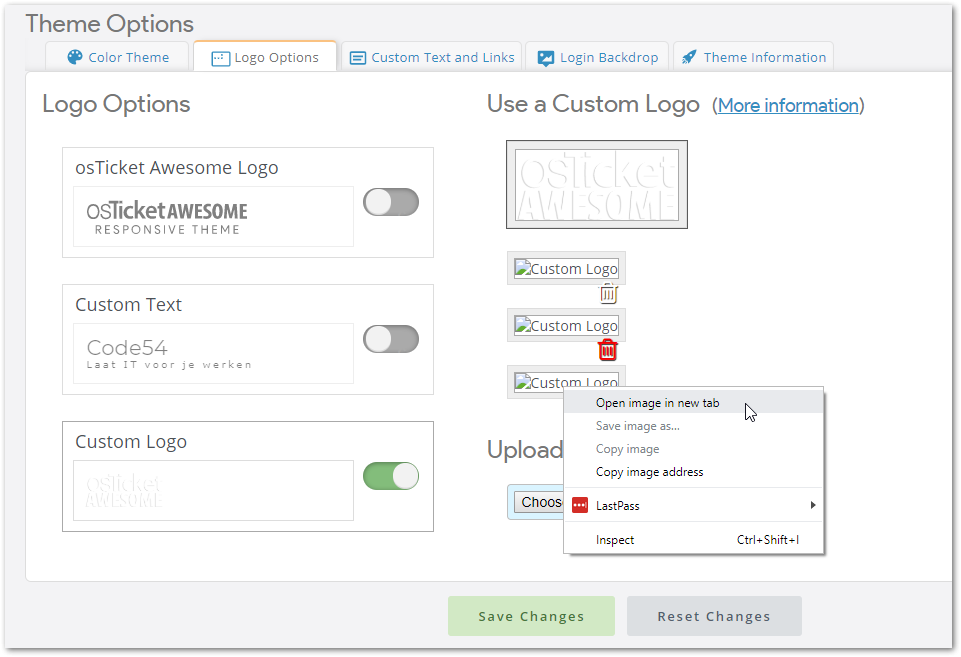
If I open the image in a new tab, I get this error:
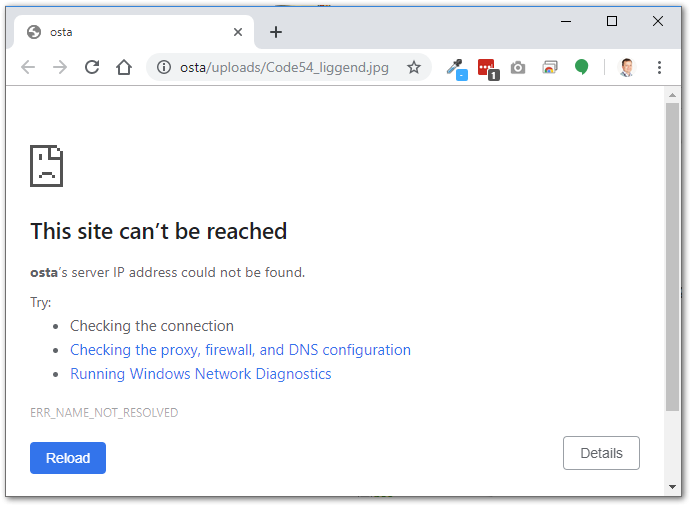
I was thinking that the website URL was wrong, but that Admin-Setting looks correct. I'm also pretty sure that the logo suddenly disappeared. I'm very sure it wasn't an update or server reboot or anything.
Why do I see 3 non-working thumbnails in the Logo Options screen? I only uploaded one. Are these in the database too, or is it just looking for files in the /upload/osta/uploads directory? There are only 2 files. The login-background and the logo.
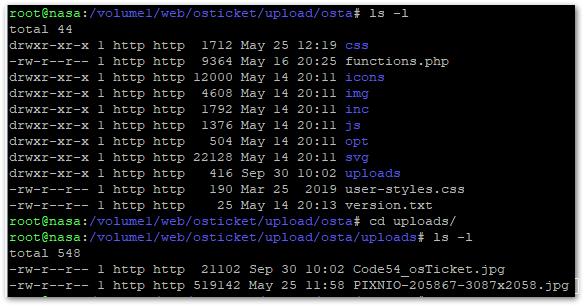
Is there anything I can test?
Thanks for your time and support.

Sorry for the delay. I'm not really sure how to proceed with this issue, other than installing from scratch. In my spare time I've been looking for a workaround for you. But I've also been very distracted. I'll get back to you soon.
Hi Stevland,
Thanks for your support. Never mind. I think it will solve itself when we install an update or something.
It's not a big deal, but always annoying when you don't understand the problem 🙂
If you have a good idea, please let me know. Otherwise, please spent your time on the more important things in life 😉
Best,
Robert
Hi @Code54,
Thanks for letting me off the hook. I was already working on this workaround, so I decided to finish it.
You can add the following code to /osta/user-styles.css:
/* Client Portal and Staff Panel */
#header-image img {
display: none !important;
}
#header-image:after {
content: ' ';
display: inline-block;
background: url(  ); /* change path */
background-size: cover;
height: 34px; /*do not change this value*/
width: 105px; /* adjust this value until the logo looks good*/
}
/*Staff Login page*/
#login-title #header-image img {
display: none !important;
}
#loginBox #header-image:after {
content: ' ';
display: inline-block;
background: url( ); /* change path */
background-size: cover;
height: 109px; /* adjust this value until the logo looks good*/
width: 332px; /*do not change this value*/
}
After you add that code your logo will be replaced with a Google logo from my server.
You can then change the path to point to your own logo in the /osta/uploads folder, or elsewhere on your server.
---
After getting all of that ready it occurred to me to ask: how did you upload the osTicket Awesome files?
Did you see the following item from the FAQ page?
Will it work on my Synology NAS?
Yes.
One of our users reported having trouble uploading his osTicket Awesome installation using the File Manager. So if you run into trouble while installing, try using an FTP program (such as the free FileZilla) to copy the files over.
Thanks Stevland,
I will try this (I'm sure it works!).
About your question on how I uploaded the files. Originally osTicket is just a package you can install on the NAS.
It was no problem for me to upload the osTicketAwesome file using File Manager (copy and paste the archive and unzip it on the NAS). It had worked fine for several months.
Of course, I know that if nothing has changed, it would still have worked. So there must be changed something that we didn't notice. Maybe there was an update from the original osTicket package after all.
It might be better to install osTicketAwesome on a normal Linux host but I'm always afraid that I leave it insecure. Most of the times it easy to setup a webserver, database, etc. But you have to know what you are doing in order to secure it. That's what I like about the Synology packages. It's taken care of by them. But maybe at the cost that you shouldn't tamper it yourself.