
This guide will help you install osTicket Awesome for the first time into a subdomain on your self-hosted Windows IIS server.
If you already have osTicket or osTicket Awesome installed, if you’re using a Linux server, or if you are installing to a directory (rather than a subdomain), please go back to this menu.
You have chosen to install osTicket Awesome into a subdomain. The subdomain can have any name of your choosing. Common names that people use are osticket, helpdesk or support.
For the purpose of these instructions we will assume that your website is www.your-domain.com and that your osTicket Awesome installation will be in www.support.your-domain.com
Make sure you have PHP installed on your system.
osTicket 1.18 requires PHP 8.1 or 8.2 (the Non-Thread Safe version is recommended for IIS). If PHP is not installed, download the appropriate Non-Thread Safe (NTS) .zip package from windows.php.net/download. You will also need the Visual C++ Redistributable for Visual Studio 2015–2022 if it is not already installed.
Extract the PHP .zip to a directory such as C:PHP. Then configure IIS to use PHP by adding a FastCGI handler mapping in IIS Manager. The easiest way to do this is with PHP Manager for IIS, which lets you register the PHP version and enable extensions through a graphical interface.
For a detailed walkthrough with screenshots, see Install PHP with IIS on Windows Server 2025 (RDR-IT) or Install IIS and PHP 8.x on Windows 11 and Server 2025 (4sysops).
Make sure you have MySQL installed on your system.
osTicket requires MySQL 5.5 or higher (MySQL 8.0 is recommended for new installations). If MySQL is not installed, download the MySQL Installer for Windows from dev.mysql.com.
Run the installer, choose Server only (or Developer Default if you also want MySQL Workbench and other tools), and follow the prompts. During setup you will be asked to create a password for the root user. Create a strong password and make a note of it.
Download and extract the latest osTicket Awesome .zip. Put the contents of the upload folder in your web root directory.
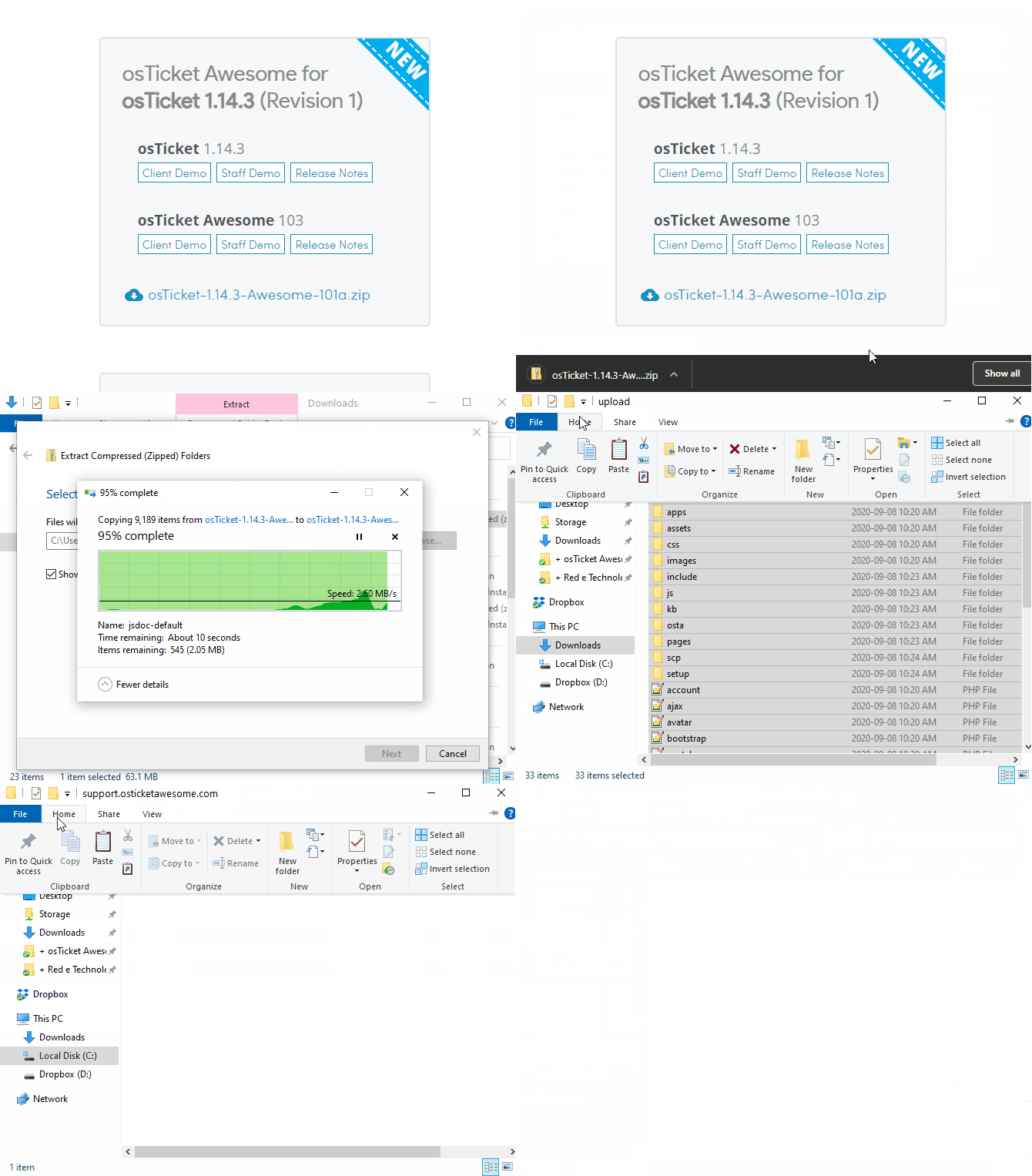
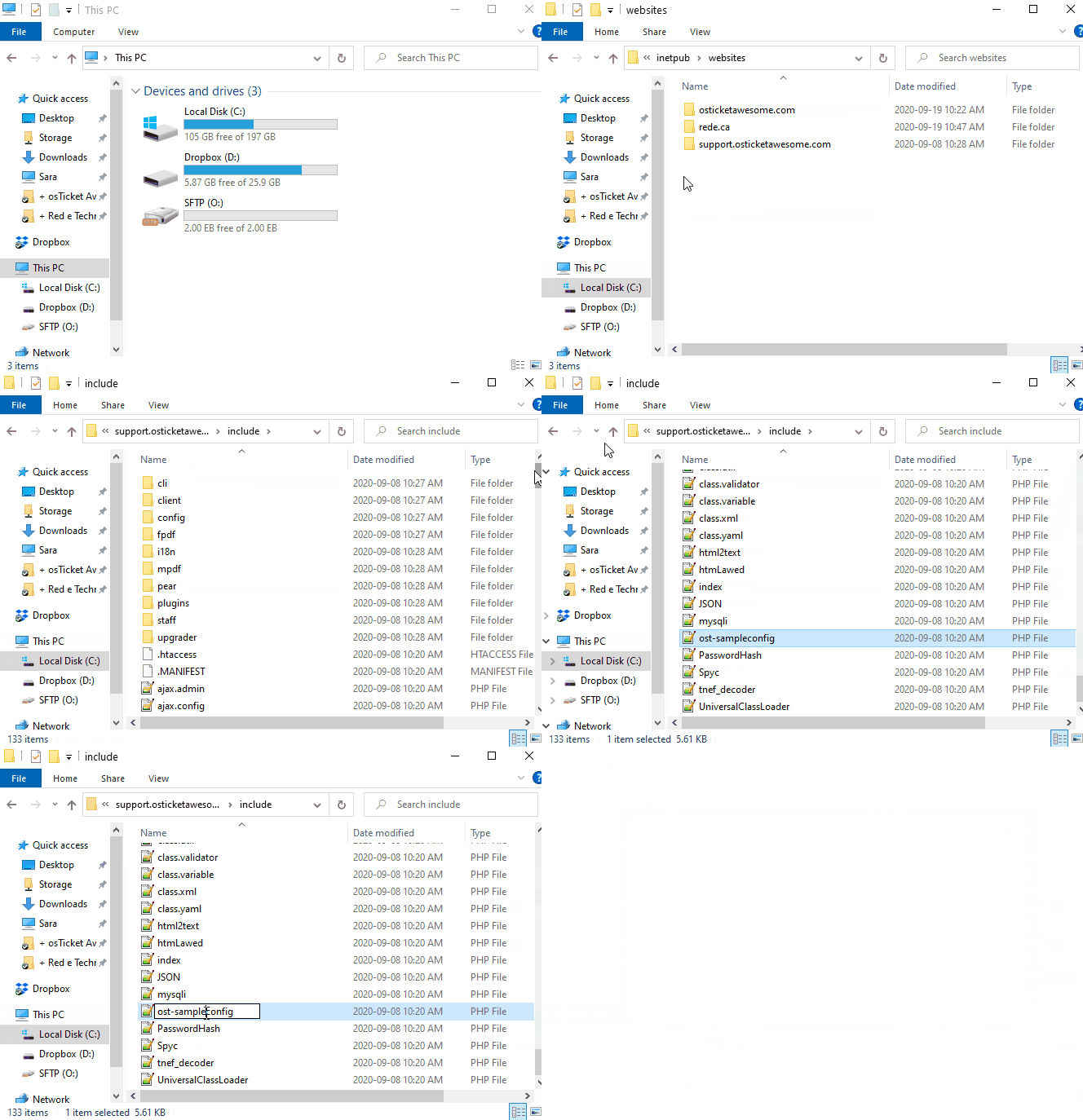
Rename includeost-sampleconfig.php to includeost-config.php
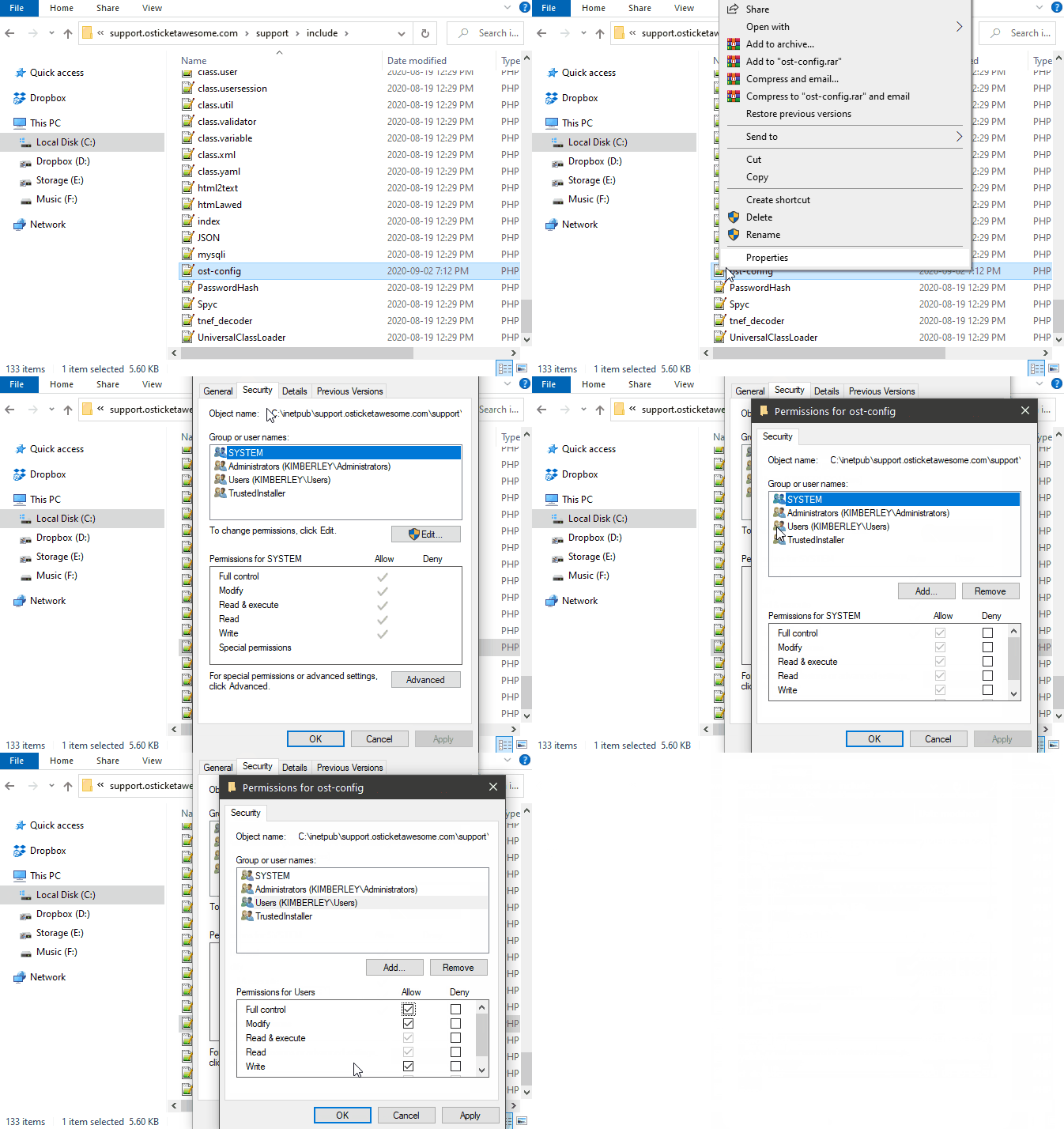
Make the ost-config.php file writable
-
Windows Explorer
Right-click on includeost-config.php and select Properties
Go to the Security tab
Click Edit
Highlight Users
Click the check box beside Full Control
Click OK > OK
-
Windows PowerShell
PowerShell
icacls includeost-config.php /grant 'Everyone:F'
(Optional) Install additional PHP extensions to increase osTicket performance.
Make sure you have the PHP Manager installed on your system. If not, install it.
- Open IIS Manager, go to Sites > your-domain.com > click on PHP Manager
- Under PHP Extensions click on Enable or disable and extension
- If any of the following are available, enable them:
php.imap.dllphp.intl.dllphp.opcache.dll
- Locate your
php.inifile (e.g.C:PHPphp.ini - Open
php.inias Administrator and add the following line to the very end of the file:php.inizend_extension=php_opcache.dll
Create a database using HeidiSQL or MySQL Command Prompt. Create a user for your database.
-
HeidiSQL
If you don’t already have HeidiSQL, download and install it.
Open the Session Manager
Click New > Session in root folder > name it osTicket > enter your root password > Open
Right click on osTicket and select Create new > Database
Name it osticket_ and click OK
-
MySQL Command Prompt
Open the MySQL Command Prompt by clicking Start > MySQL > MySQL Command Line Client
Enter your password for the root account
MySQL Command Promptmysql> create database osticket_; mysql> create user 'osticket-user'@'localhost' identified by 'Pa$$w0rd'; mysql> grant all privileges on osticket_.* to 'osticket-user' identified by 'Pa$$w0rd'; mysql> flush privileges; mysql> exit;
Go to www.support.your-domain.com and follow the prompts to complete the installation
Create your first osTicket administrator account and password
In most cases you will keep the default settings for Table Prefix and Hostname
Enter the Database name you create earlier
Enter the Username and Password you created earlier.
Click Install Now
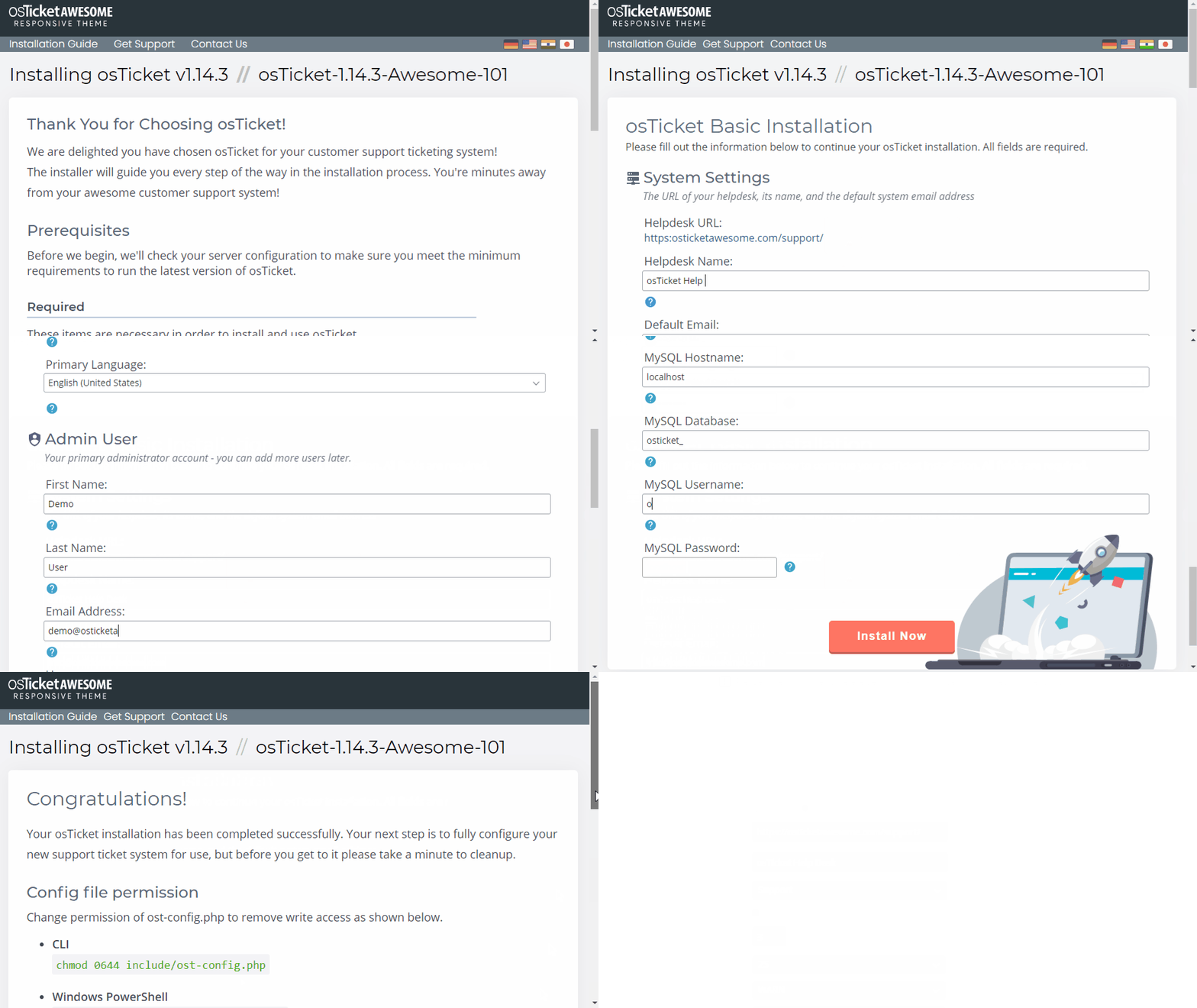
Remove write access of ost-config.php
-
Windows Explorer
Right-click on includeost-config.php and select Properties
Go to the Security tab
Click Edit
Highlight Users
Uncheck anything under Permissions > Allow
Click OK > OK
-
Windows PowerShell
PowerShell
icacls includeost-config.php /reset
Now take a look at our post-installation tasks