
This guide will help you install osTicket Awesome for the first time into a subdomain on your self-hosted Linux server.
If you already have an osTicket or an osTicket Awesome installation, if you’re using a Windows IIS server, or if you are installing to a directory (rather than a subdomain), please go back to this menu.
You have chosen to install osTicket Awesome into a subdomain. The subdomain can have any name of your choosing. Common names that people use are osticket, helpdesk or support.
For the purpose of these instructions we will assume that your website is www.your-domain.com and that your osTicket Awesome installation will be in www.support.your-domain.com
Download and extract the latest osTicket Awesome .zip. Move the contents of the upload folder to your subdomain root directory. Delete the upload folder.
-
cPanel
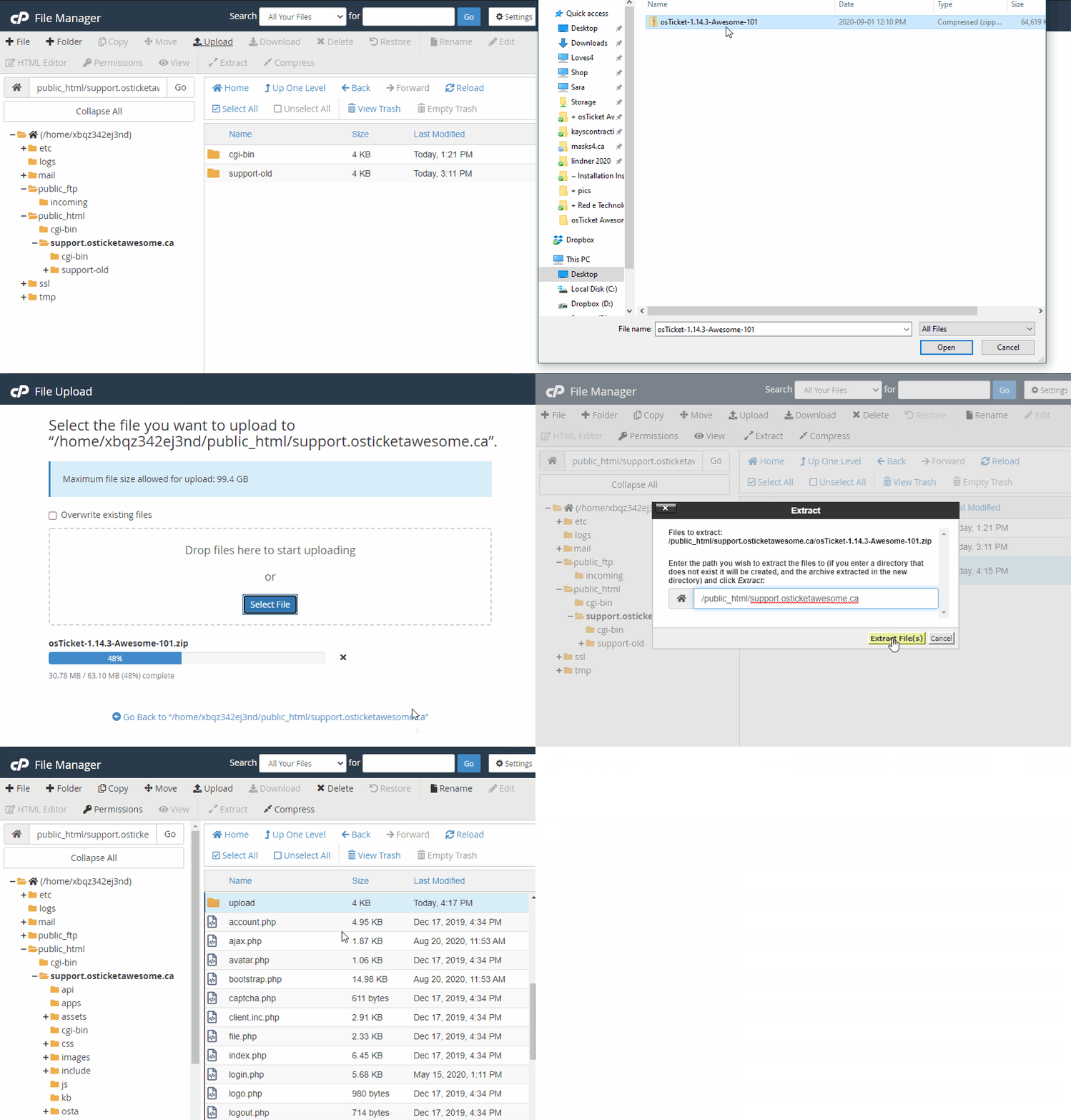
Download the osTicket Awesome installation .zip to your computer
Upload .zip to your subdomain.your-domain.com directory
Extract the .zip file
Open the upload directory
Click Select All to highlight all of the files and then drag them into your subdomain.your-domain.com directory
Go back to your subdomain root directory
Select upload, README.txt and the osTicket Awesome .zip and click Remove
-
Plesk
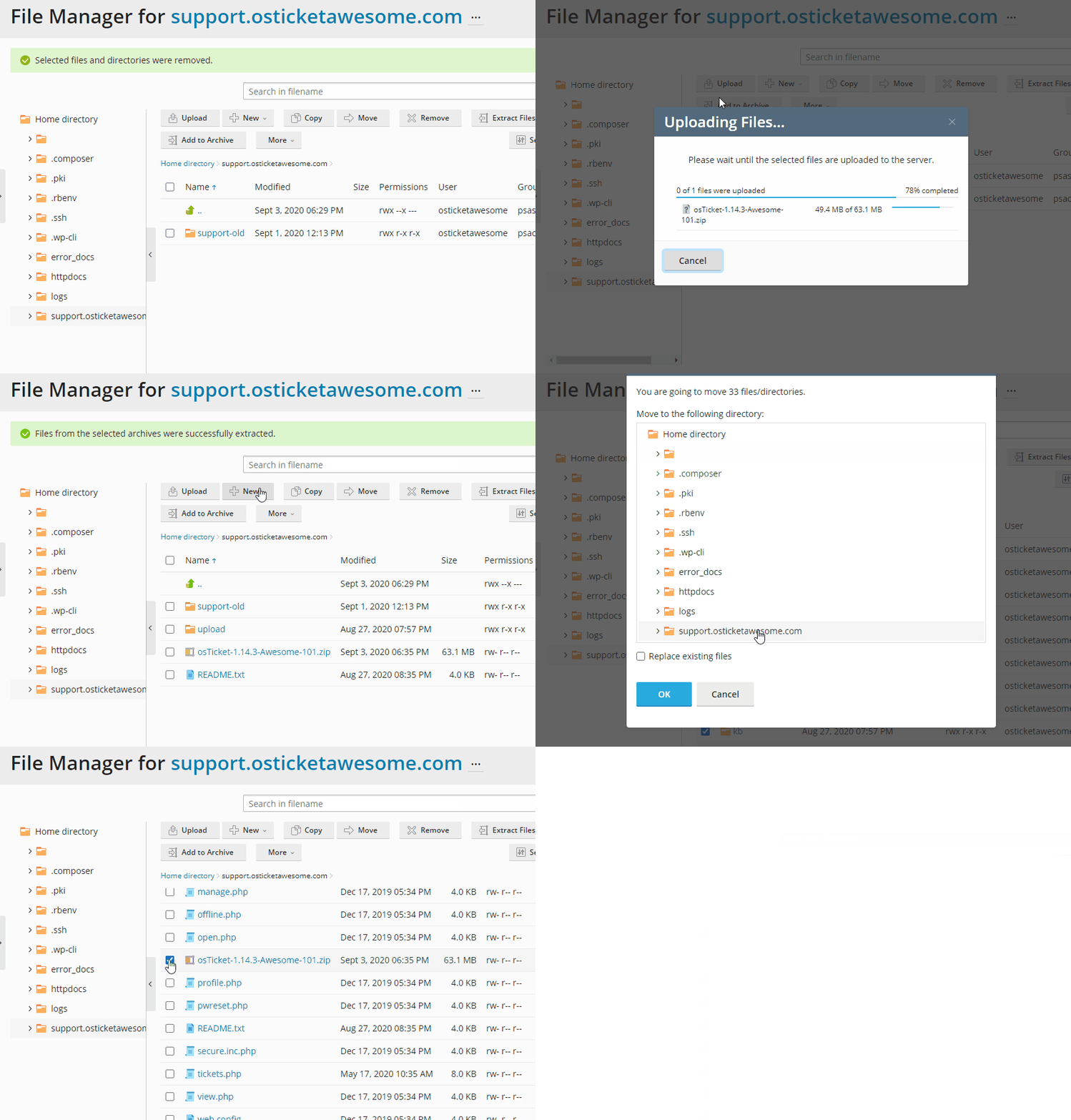
Download the osTicket Awesome installation .zip to your computer
Go to subdomain.your-domain.com > File Manager
Upload .zip to your subdomain
Extract the .zip file
Open the upload directory
Highlight all of the files > Move > select your subdomain > OK
Go back to your subdomain root directory
Select upload, README.txt and the osTicket Awesome .zip and click Remove
-
FTP
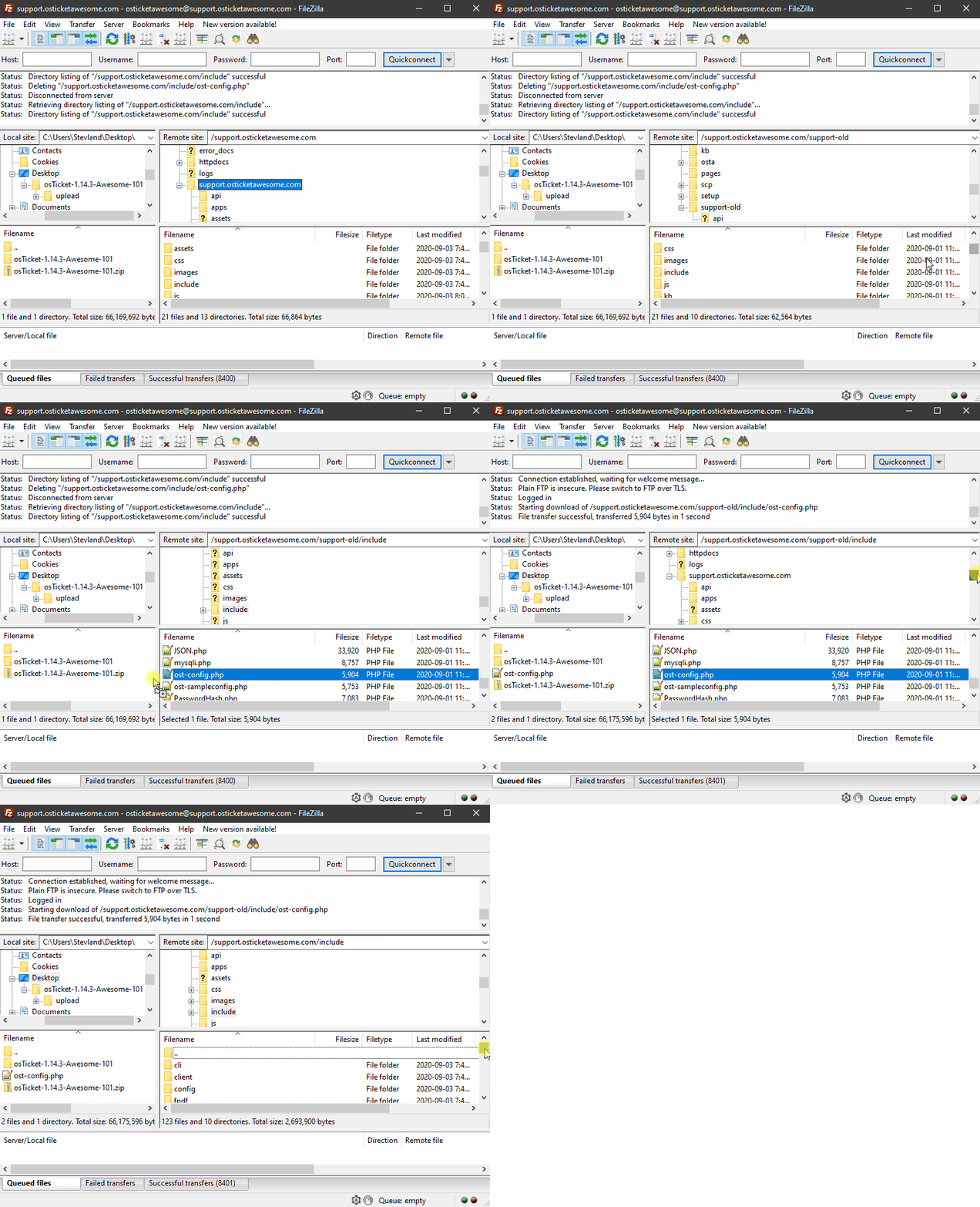
Download the osTicket Awesome installation .zip to your computer
Extract the .zip on your computer
Open the upload folder
Transfer the contents of the upload folder to your subdomain root directory
-
CLI
Download the osTicket Awesome installation .zip to your computer
Use one of the above methods to transfer it to your subdomain root directory
Terminal# unzip osTicket-1.14.3-Awesome-101.zip # mv upload/* . # rm -r osTicket-1.14.3-Awesome-101.zip README.txt upload/
Rename include/ost-sampleconfig.php to include/ost-config.php
-
cPanel
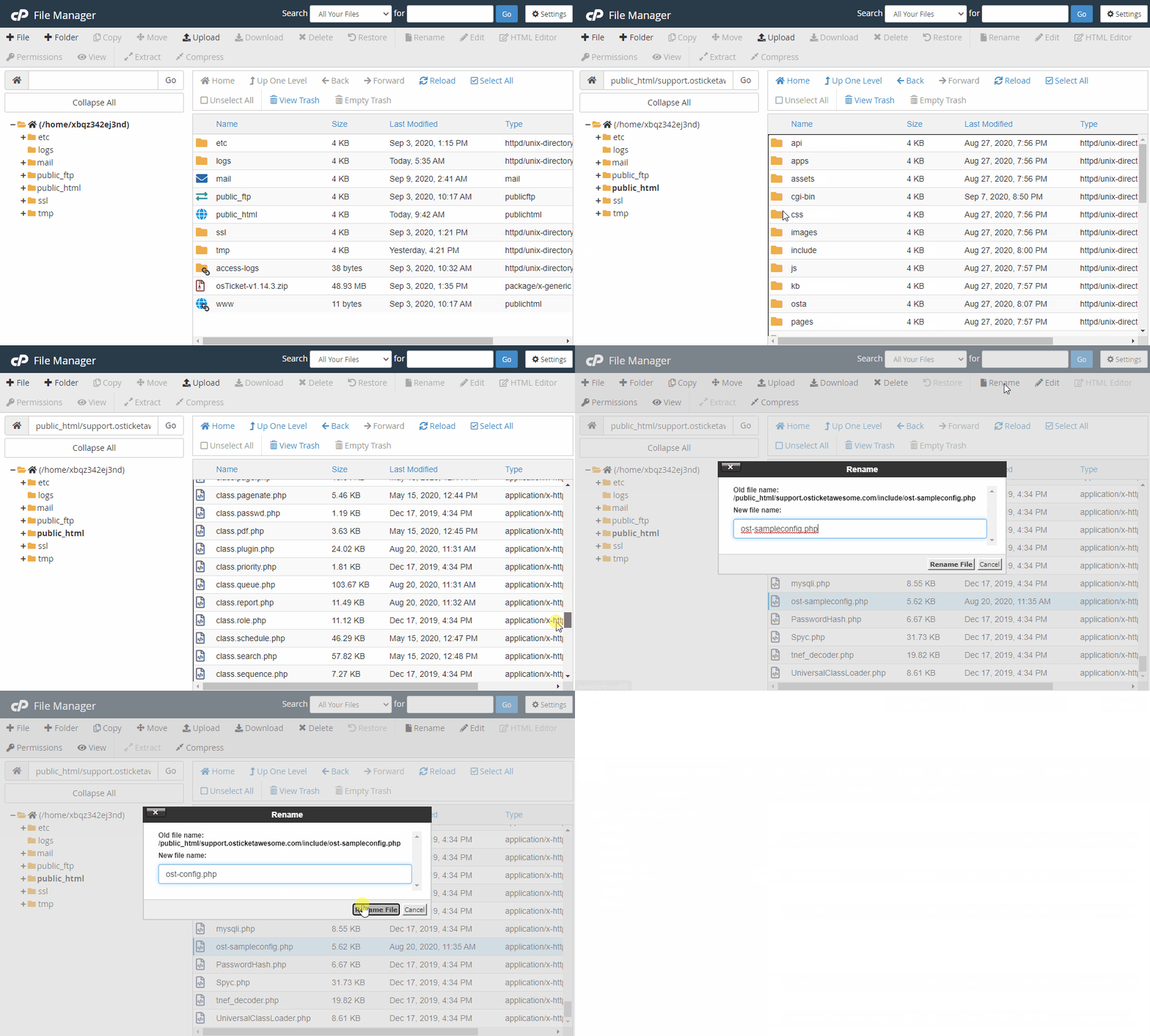
Open the File Manager
Navigate to include/ost-sampleconfig.php and select it
Click Rename
Rename it ost-config.php
-
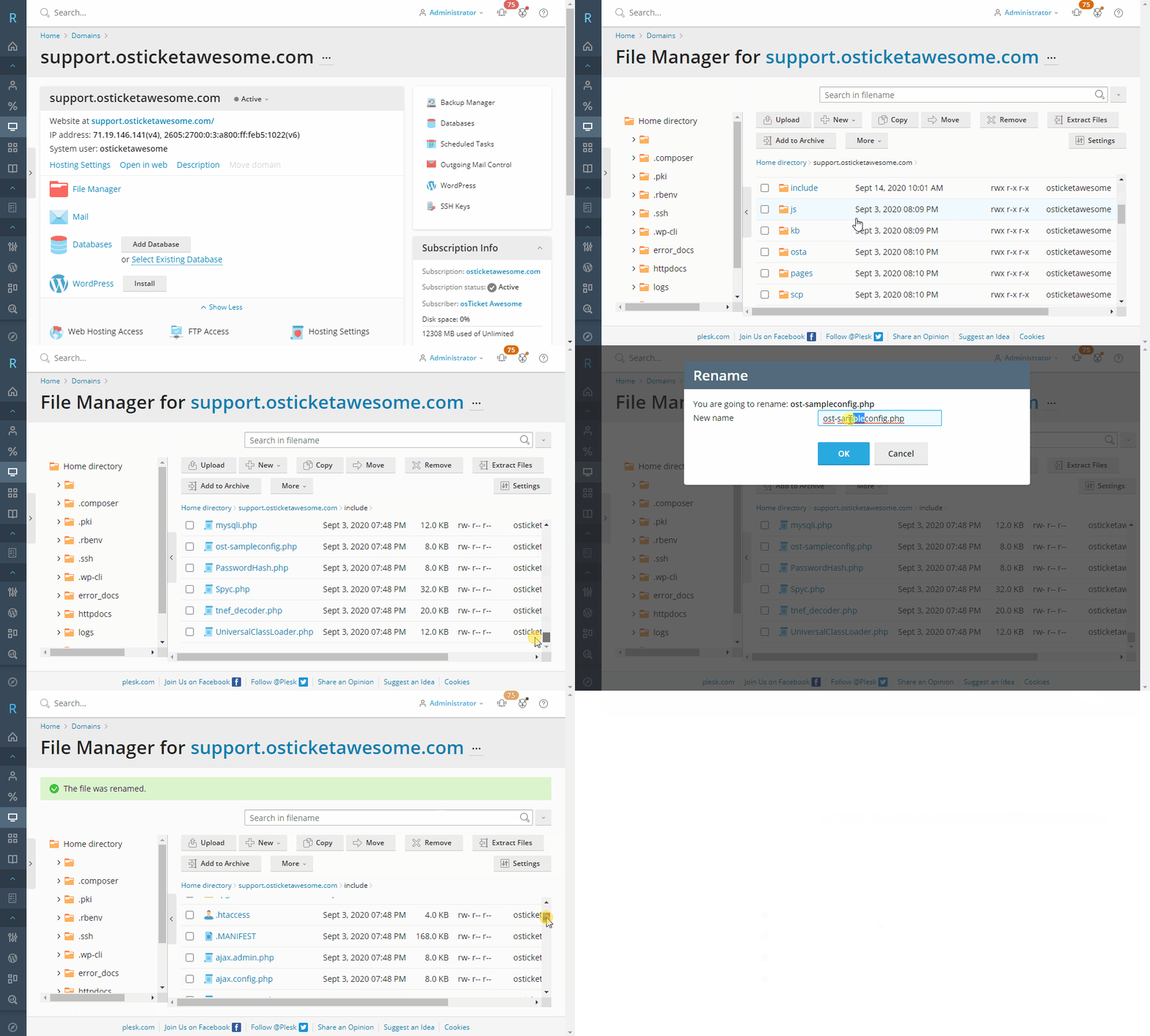
Plesk
Open the File Manager
Navigate to include/ost-sampleconfig.php
Click beside the file and select Rename
Rename it ost-config.php
-
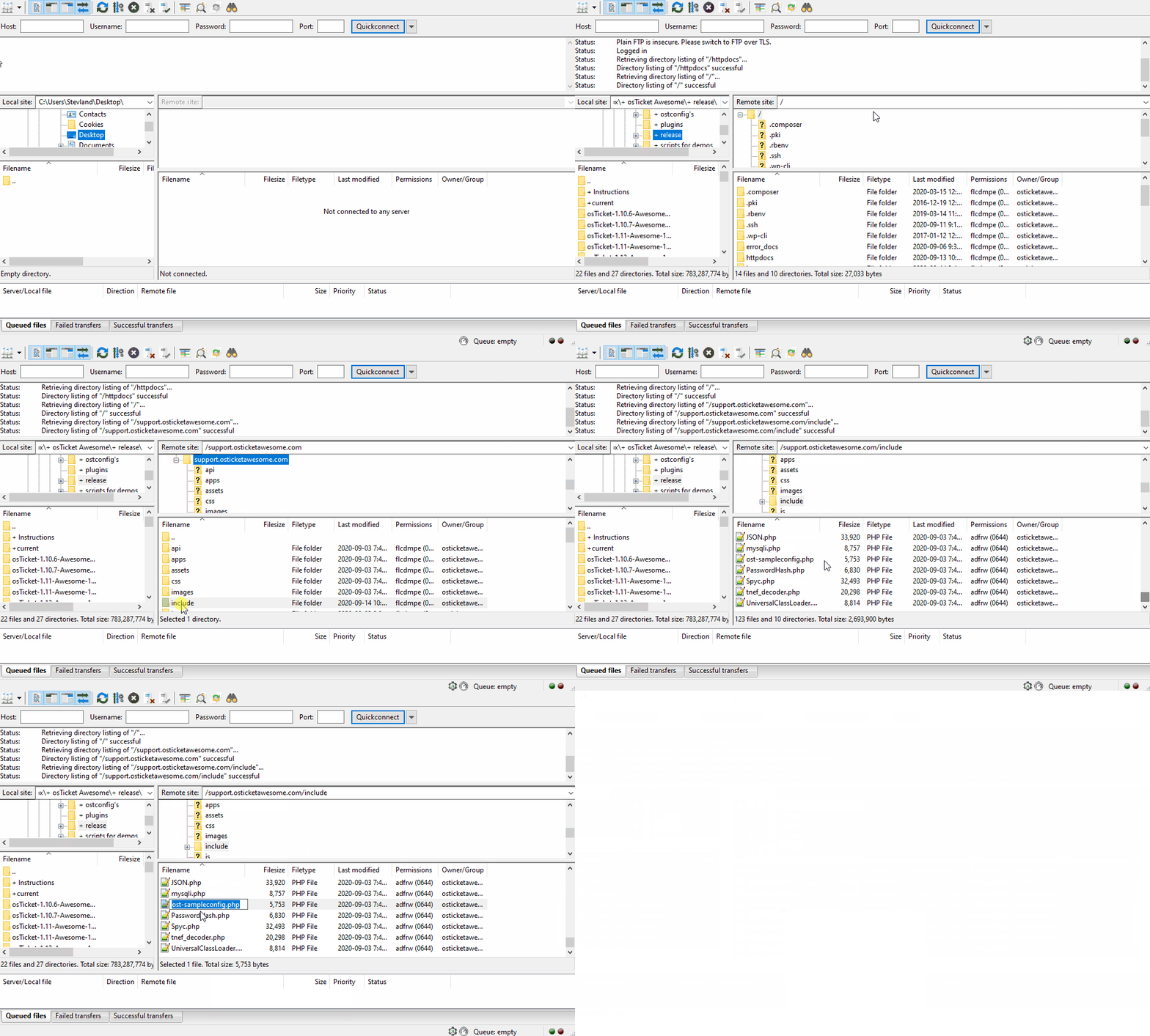
FTP
Navigate to include/ost-sampleconfig.php
Right-click on the file and select Rename
Rename it ost-config.php
-
CLI
Terminal
# mv include/ost-sampleconfig.php include/ost-config.php
Create a database using cPanel, Plesk, phpMyAdmin or CLI. Create a user for your database.
-
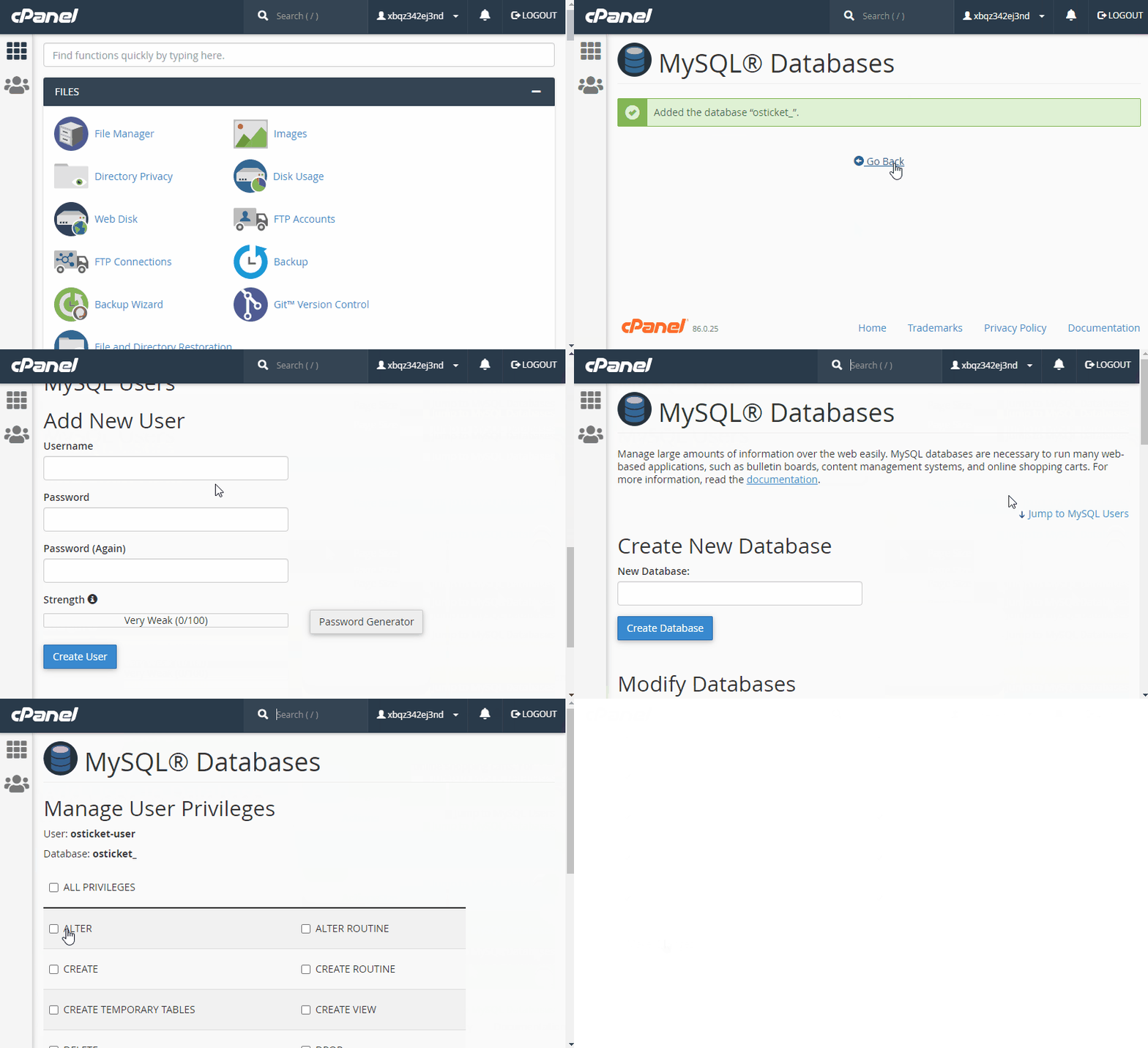
cPanel
Go to Databases > MySQL Databases
Click Create New Database > enter a name > click Create Database
Click Add New User > enter a name > enter a password > click Create User
Click Add User To Database > select your user > select your database > click Add
Click Manage User Privileges > check All Privileges > click Make Changes
-
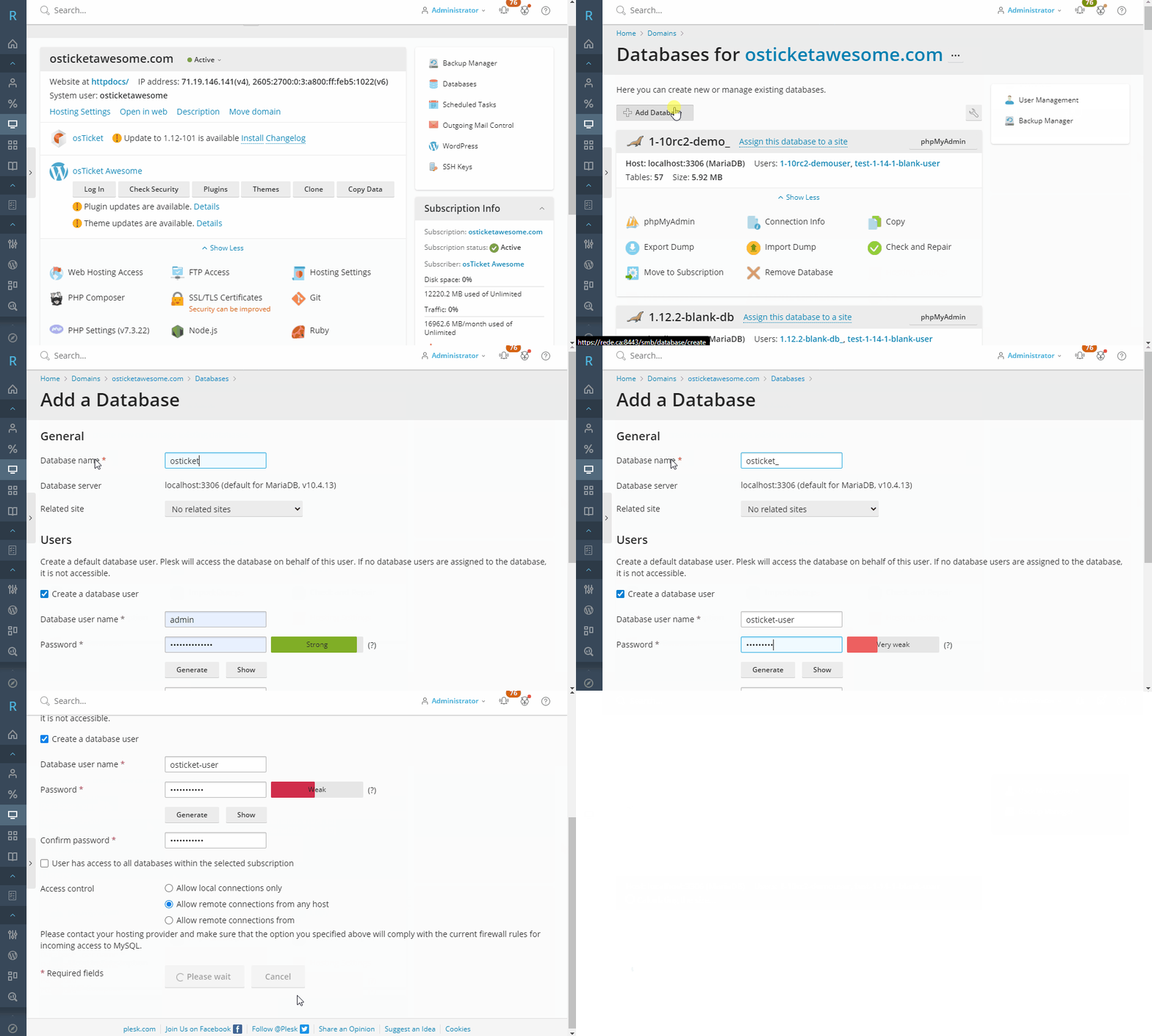
Plesk
Go to Databases
Click Add Database
Enter a Database name
Enter a Database username
Enter a Password
Click OK
-
phpMyAdmin
Open phpMyAdmin and select your database
Click Export
Select Custom
Make sure all Tables are selected
Select Add Drop Table
Click Go
-
CLI
Terminal
# mysql -u root -p
mysql> create database osticket_;
mysql> create user 'osticket-user'@'localhost' identified by 'Pa$$w0rd';
mysql> grant all privileges on osticket_.* to 'osticket-user' identified by 'Pa$$w0rd';
mysql> flush privileges;
mysql> exit;
Go to www.support.your-domain.com/scp and follow the prompts to complete the installation
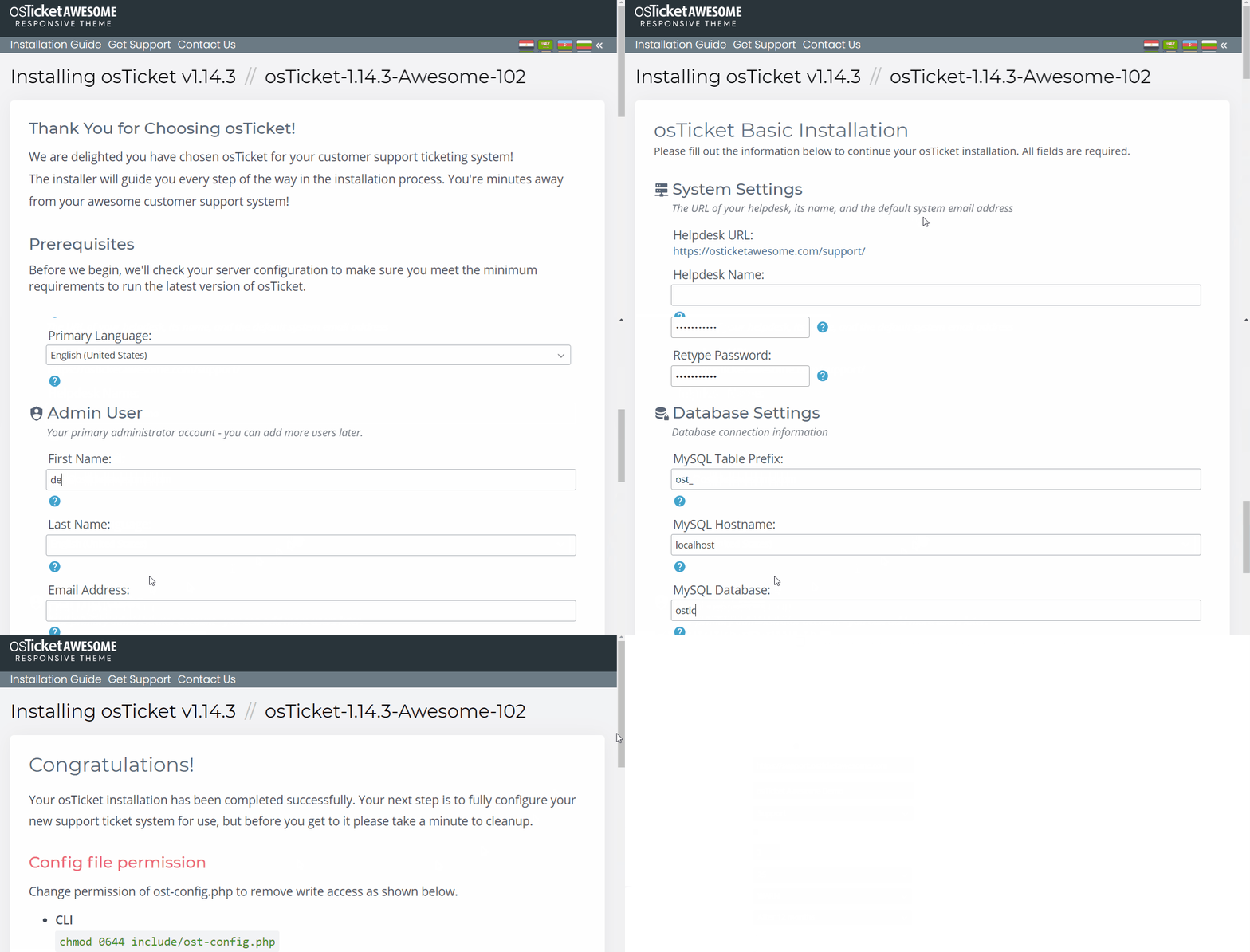
Now take a look at our post-installation tasks
I am getting the installation screen. But as soon as I fill in the details and click install, the page is going blank and nothing happens. can u please guide.
Installing osTicket v1.16.1 // osTicket-1.16.1-Awesome-101
Me too – click install and blank screen
I’ve had this problem too. In my case I’ve had set up a fresh system (Ubuntu 22.04) with PHP 8.1. After some research, I found out that PHP 8.1 might be the problem because I was told it was yet unsupported by osTIcket. So I downgraded it to PHP 8.0 and from that moment everything worked fine.
Yep – same – 1.16.x is not PHP 8.1 compatible. Dropped to 8.0.x and works.
I get the error during installation: Cannot declare class Event, because the name is already in use in /var/www/vhosts/befi-fs.ch/ticket.befi-fs.ch/upload/include/class.thread.php on line 2240