
This guide will help you update your existing osTicket Awesome installation on your self-hosted Windows IIS server.
If you are using a Linux server, or your installation is in a directory (rather than a subdomain), please go back to this menu.
When your osTicket was first installed, you (or the person who installed it) chose the name of the subdomain that it was installed into. Common names that people use are osticket, helpdesk or support.
For the purpose of these instructions we will assume that your website is www.your-domain.com and your current osTicket Awesome installation is in www.support.your-domain.com
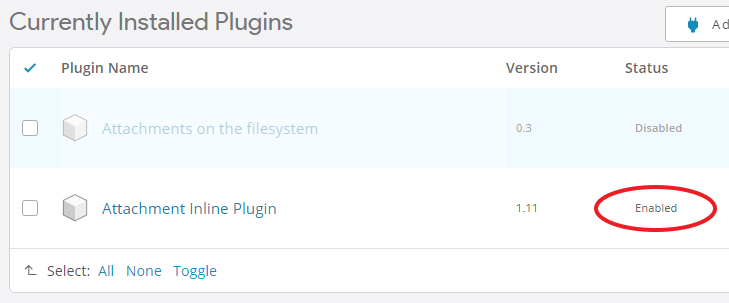
Go to Admin Panel > Manage > Plugins
Make a note of any plugins that are installed and Enabled
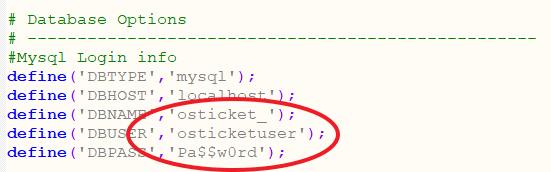
Open include/ost-config.php
Make a note of your Database Options
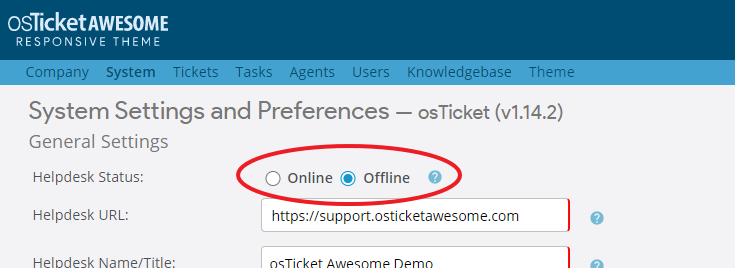
Go to Admin Panel > Settings
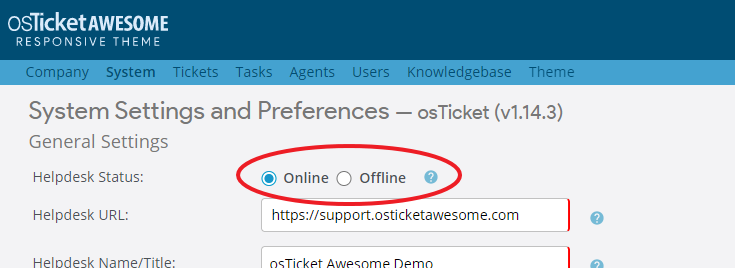
Switch your current osTicket Awesome installation to Offline
Backup your database using one of these methods
-
phpMyAdmin
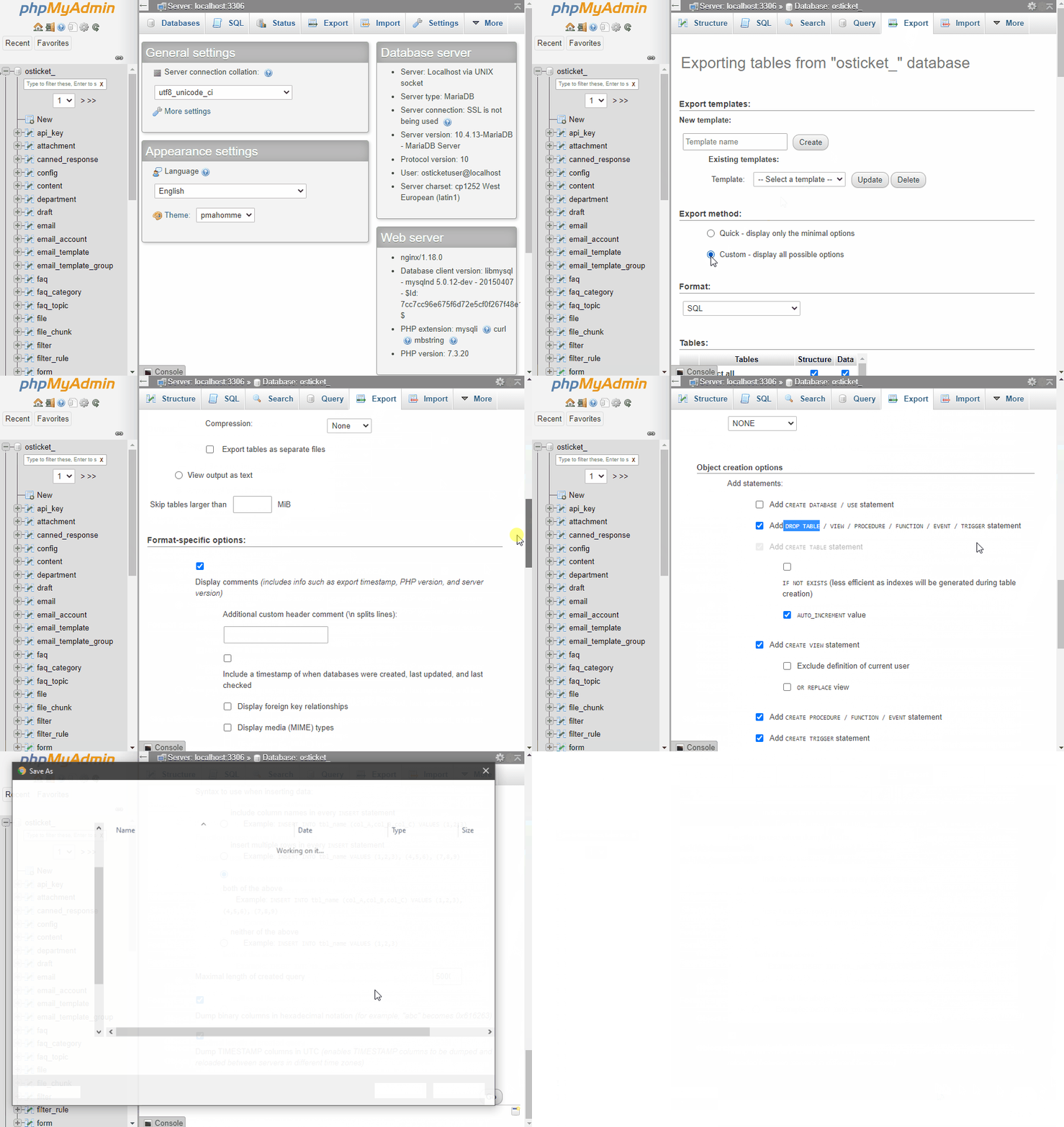
Open phpMyAdmin and select your database
Click Export
Select Custom
Make sure all Tables are selected
Select Add Drop Table
Click Go
-
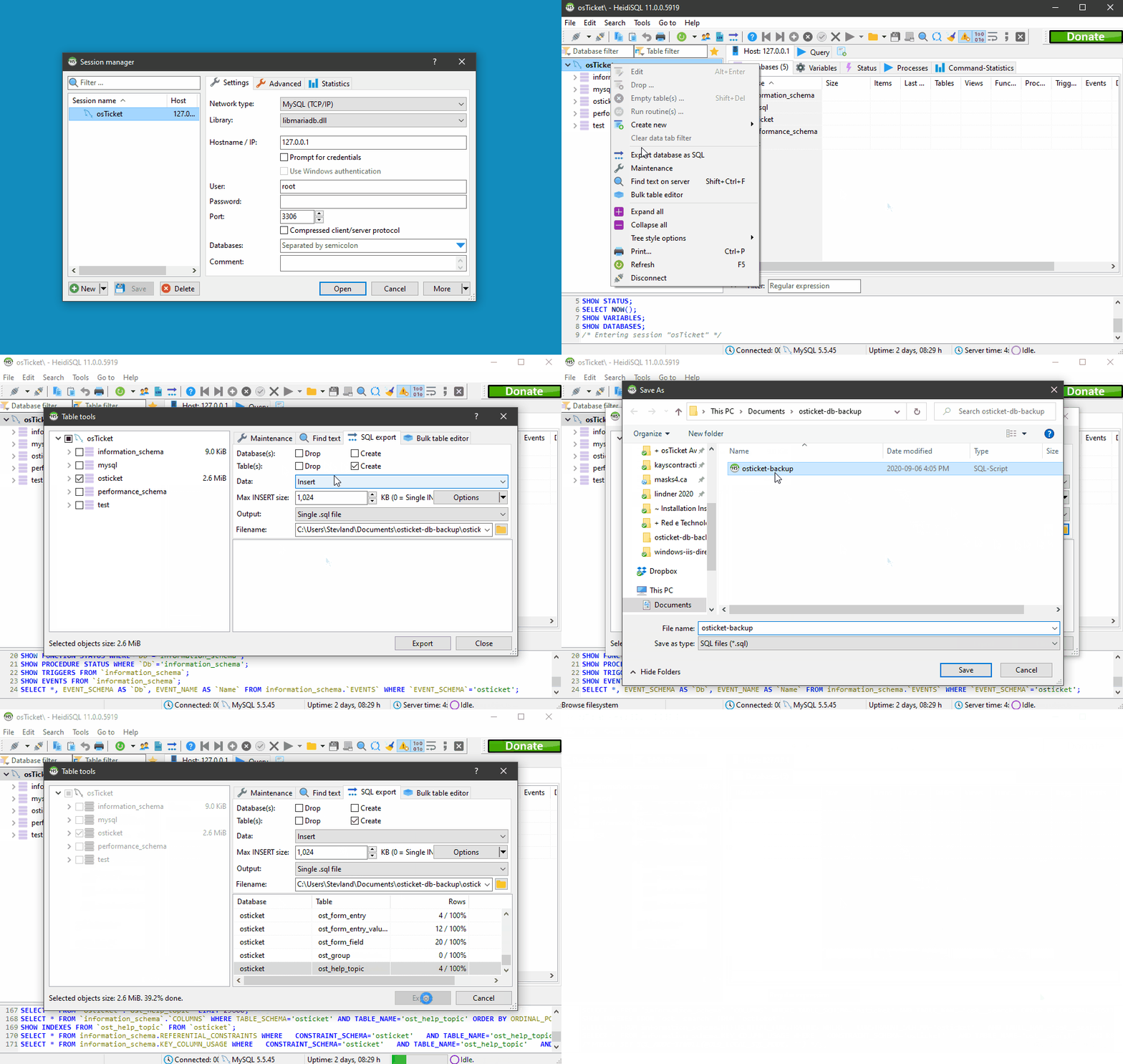
HeidiSQL
Sign into a session using your database credentials
Right-click on your database and click Export database as SQL
Specify your backup options
Specify a backup file location
Click Export
-
Windows Command Prompt
Command Prompt
Run Command Prompt as an Administrator
> mkdir %HOMEPATH%Documentsosticket-db-backup
> cd "C:Program FilesMySQLMySQL Server 5.5bin"
> mysqldump osticket_ -u root -p --single-transaction --quick --lock-tables=false > %HOMEPATH%Documentsosticket-db-backuposticket-backup.sql
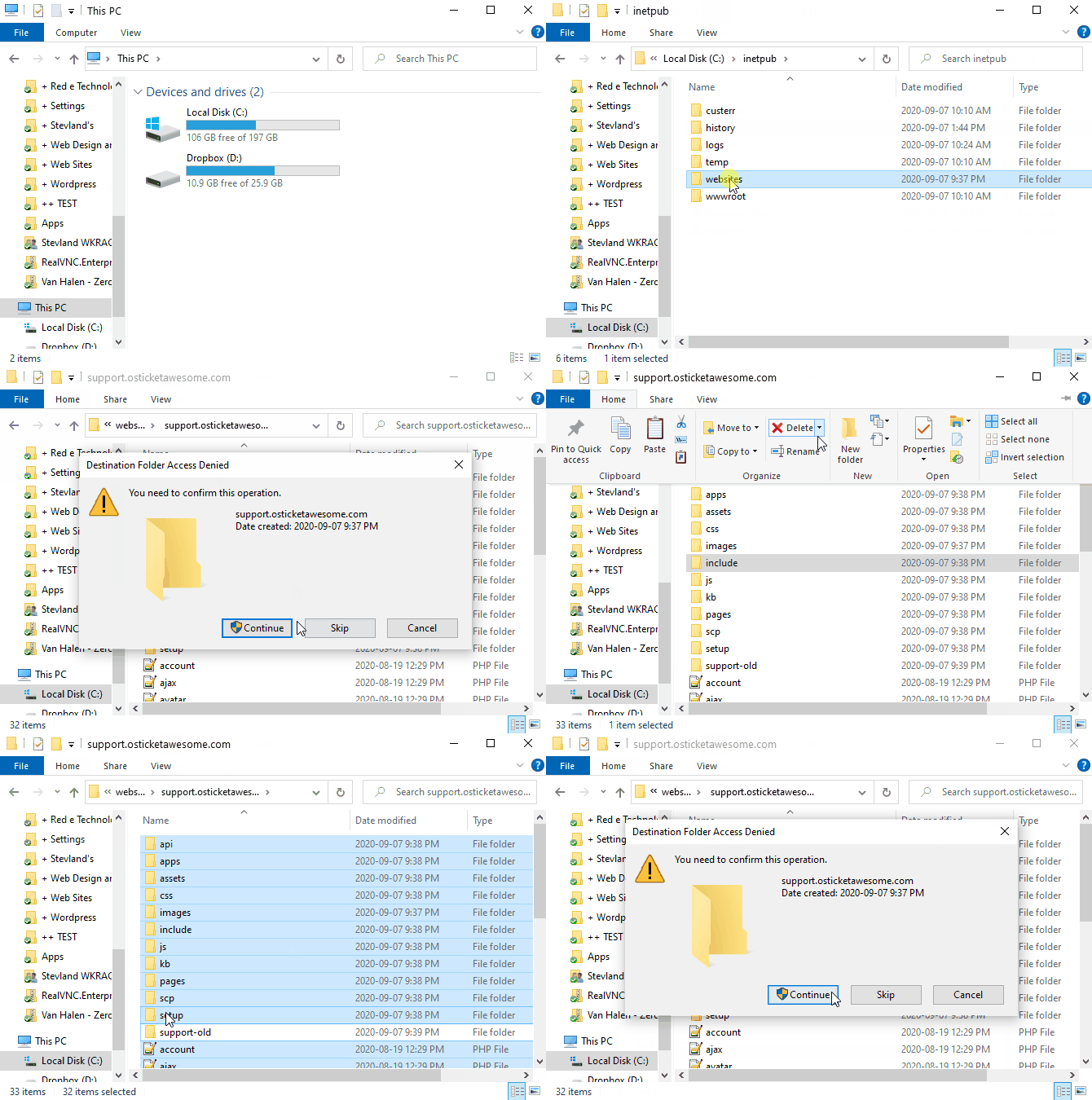
Navigate into your subdomain root directory. Create a support-old directory to backup your old osTicket Awesome files. Move the old osTicket Awesome files into that directory.
-
Windows Explorer
Navigate to your subdomain root directory
Create a support-old directory
Move all of the other directories and files into the support-old directory
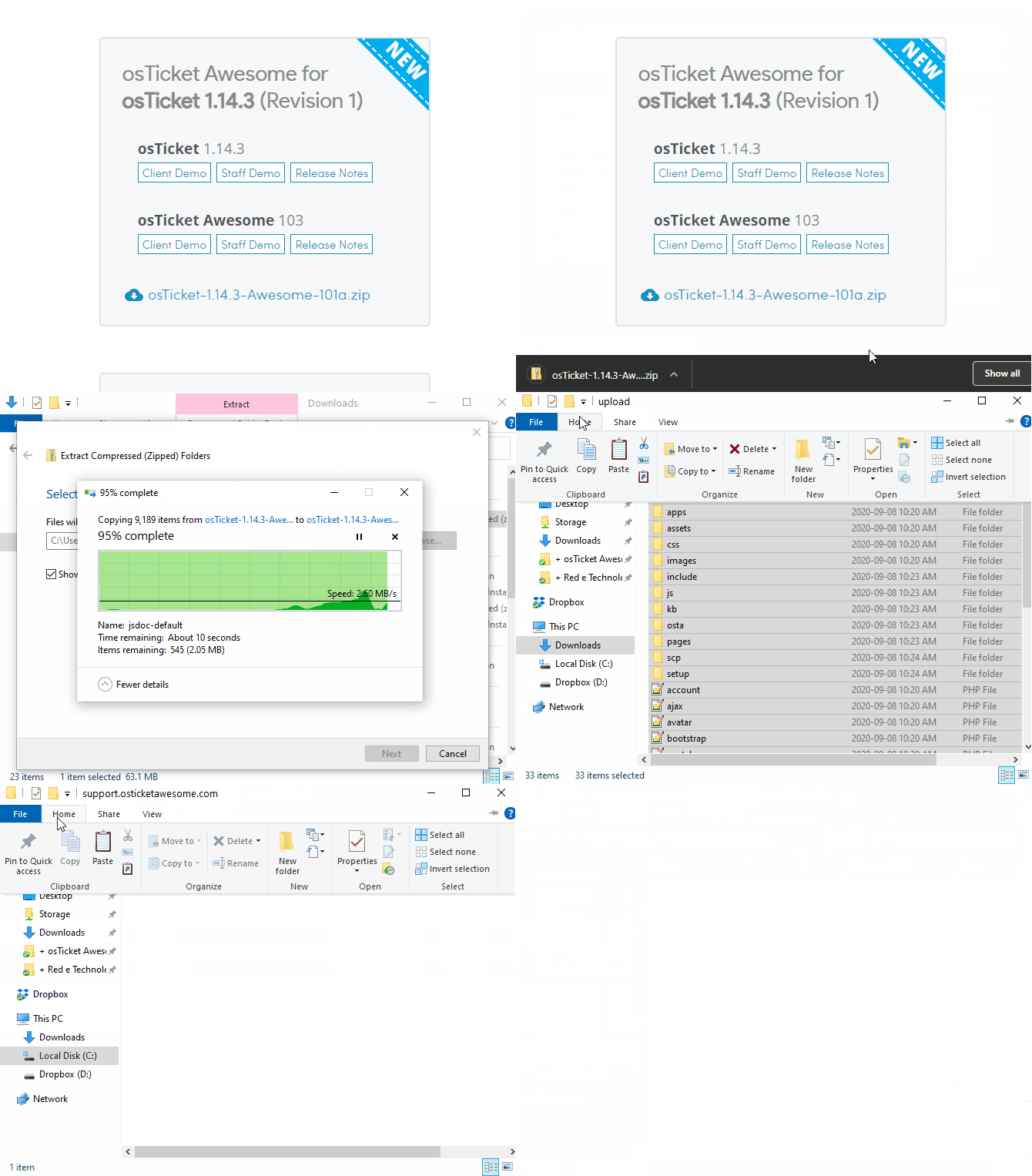
Download and extract the latest osTicket Awesome .zip. Move the contents of the upload folder to your subdomain root directory. Delete the upload folder.
-
Windows Explorer
Download the osTicket Awesome installation .zip to your computer
Extract the .zip file
Open the upload folder
Move all of the files and folders from the upload folder into your subdomain root directory
Delete the upload folder, README.txt and the osTicket Awesome .zip file
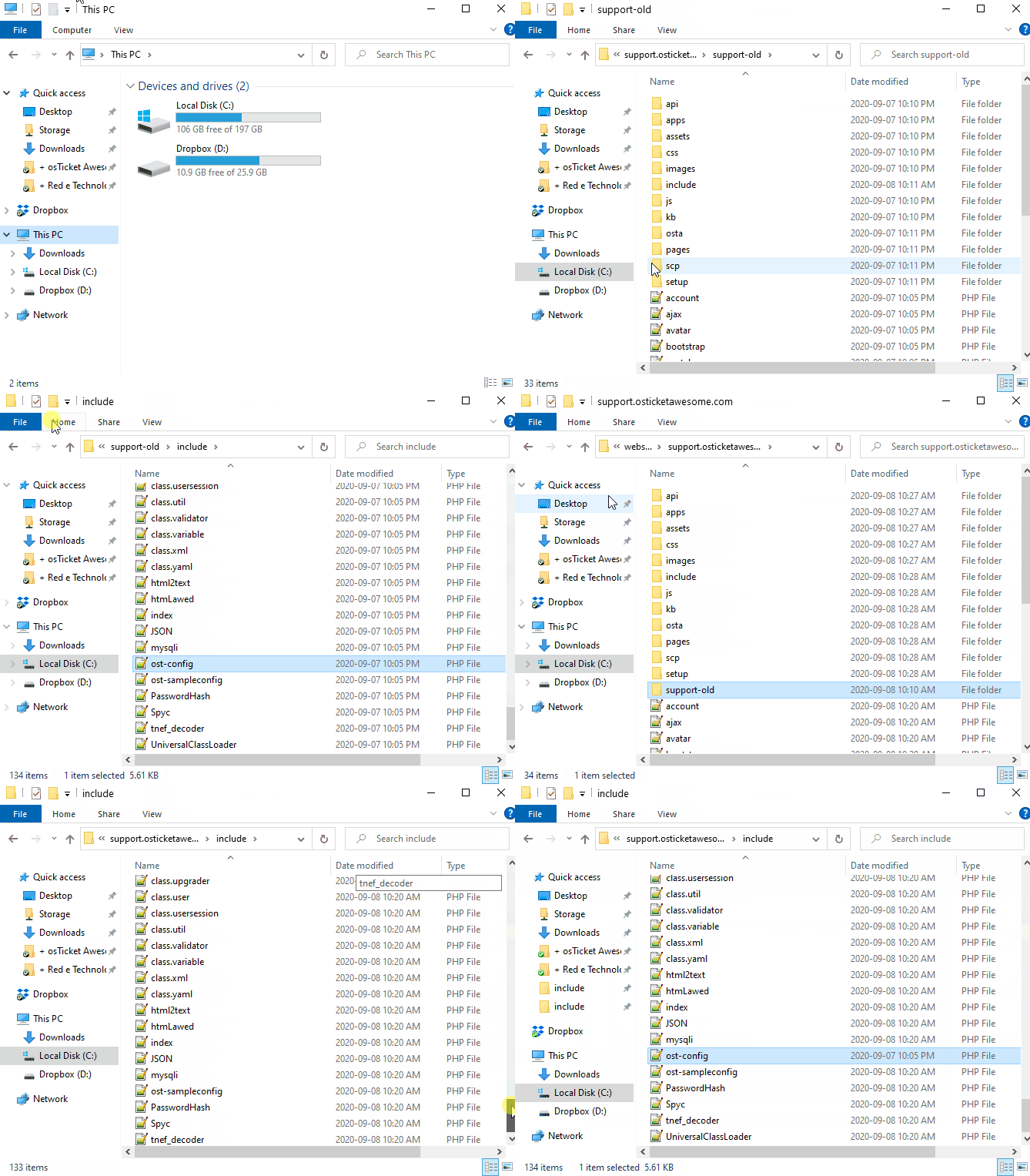
Copy ost-config.php from includesupport-old to include
-
Windows Explorer
Copy ost-config.php from support-oldinclude to include
Copy your osta\uploads folder
Copy the contents of support-old\osta\uploads\ into osta\uploads\ in your new installation to preserve your custom logo, login backgrounds, and print logo.
Go to www.support.your-domain.com/scp and log in
If required, complete the database upgrade process
Switch osTicket Awesome to Online (Admin Panel > Settings)
Now take a look at our post-installation tasks