
This guide will help you upgrade from osTicket (which you already have installed in a directory on your self-hosted Windows IIS server) to osTicket Awesome.
If you are using a Linux server, or are installing to a subdomain (rather than a directory), please go back to this menu.
When your osTicket was first installed, you (or the person who installed it) chose a name for the directory that it was installed into. Common names that people use are osticket, helpdesk or support.
For the purpose of these instructions we will assume that your website is www.your-domain.com and that the support directory will be in your web root, thus your osTicket Awesome installation will be www.your-domain.com/support
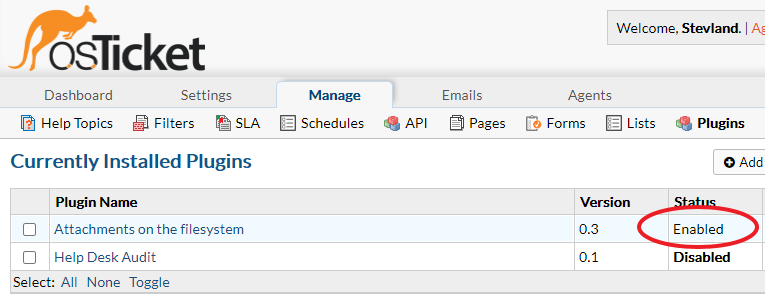
Go to Admin Panel > Manage > Plugins
Make a note of any plugins that are installed and Enabled
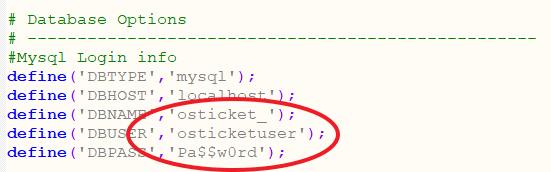
Open includeost-config.php
Make a note of your Database Options
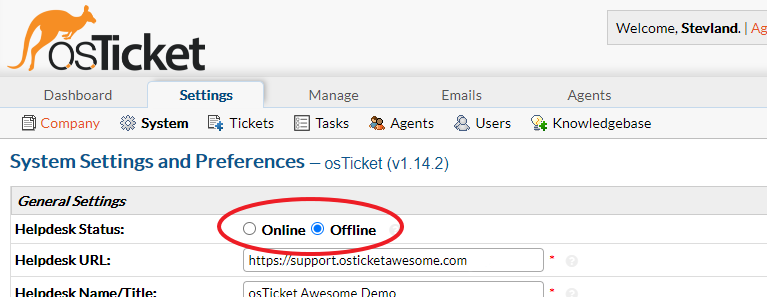
Go to Admin Panel > Settings
Switch your old osTicket to Offline
Backup your database using one of these methods
-
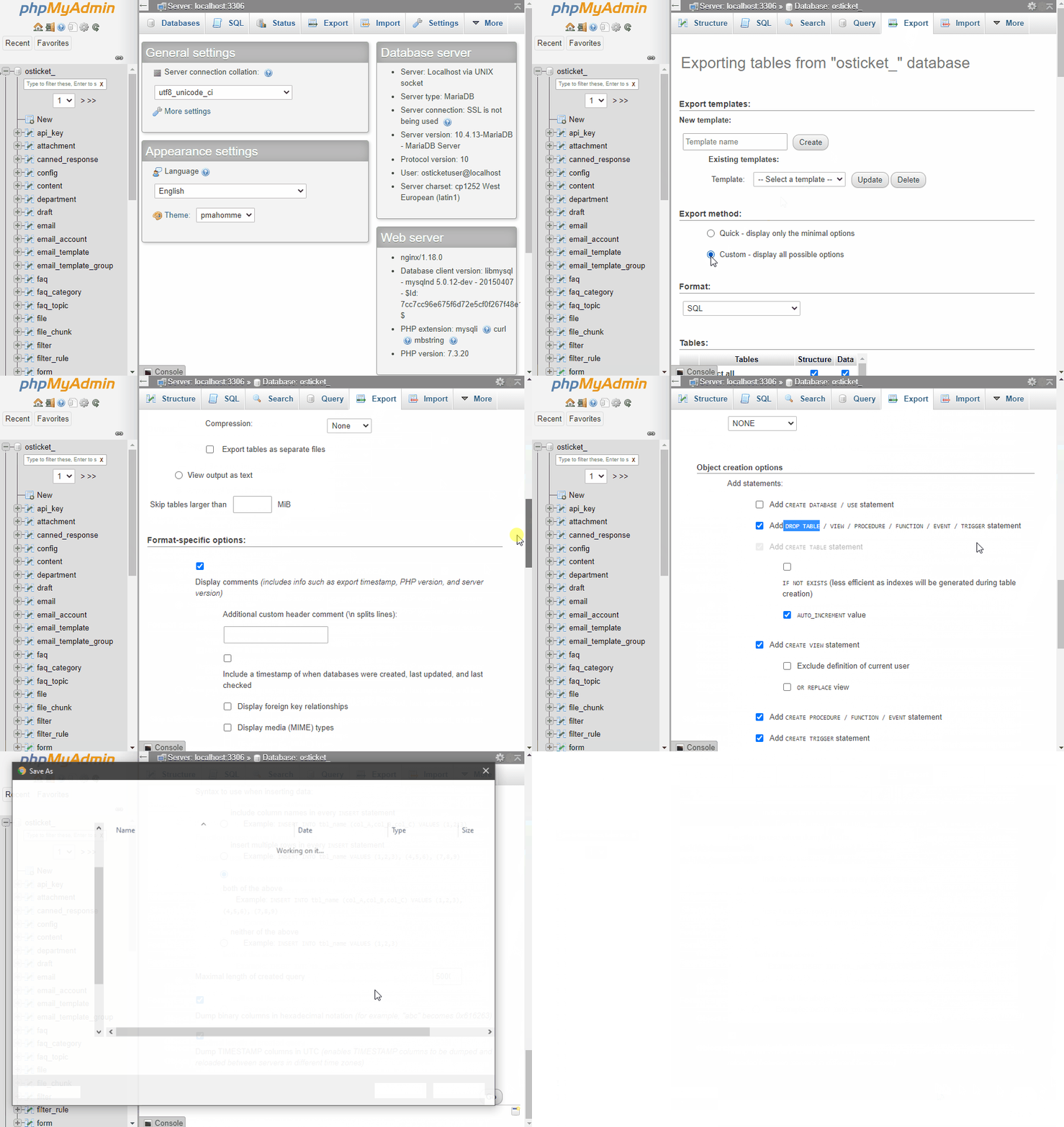
phpMyAdmin
Open phpMyAdmin and select your database
Click Export
Select Custom
Make sure all Tables are selected
Select Add Drop Table
Click Go
-
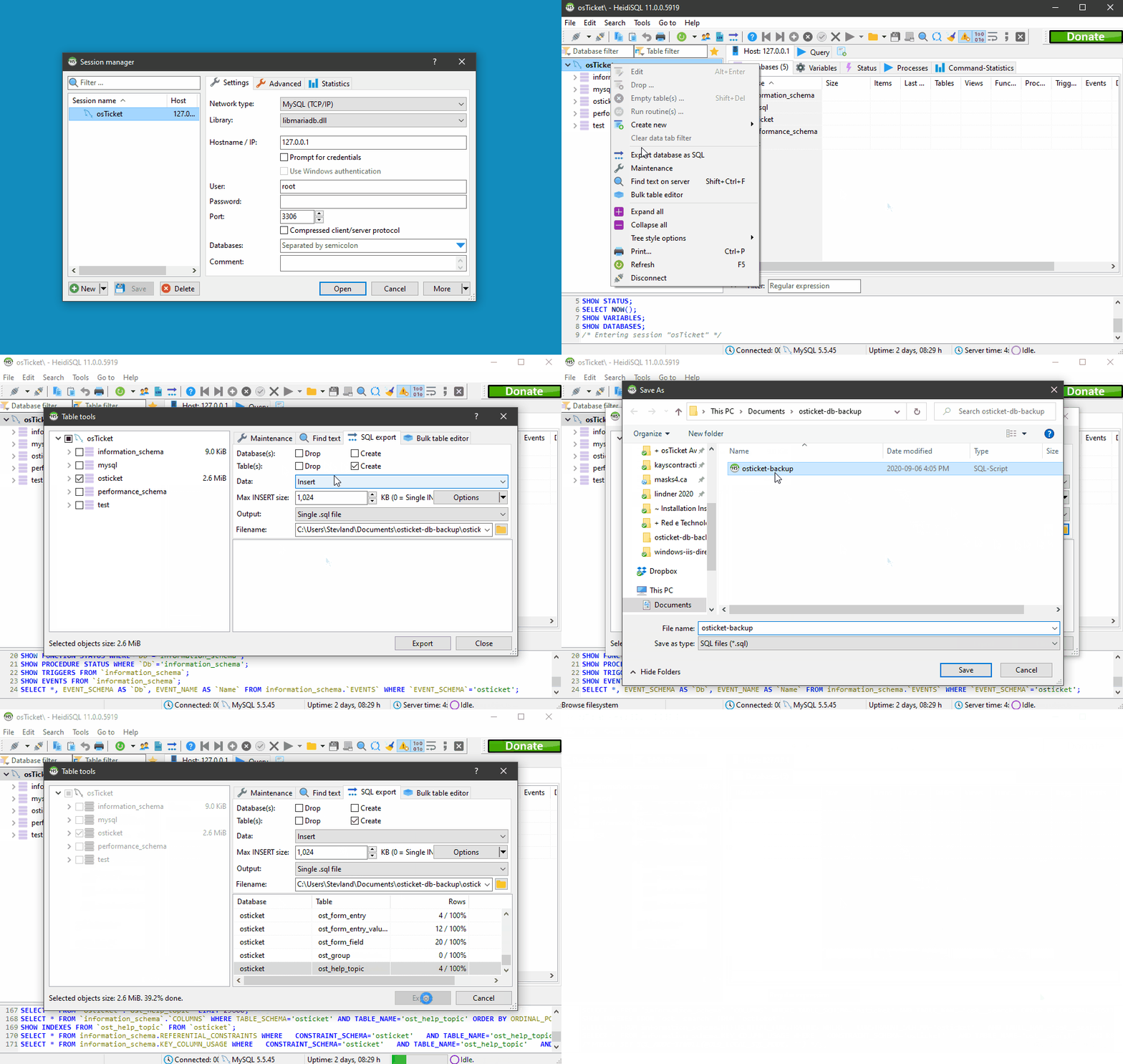
HeidiSQL
Sign into a session using your database credentials
Right-click on your database and click Export database as SQL
Specify your backup options
Specify a backup file location
Click Export
-
Windows Command Prompt
Command Prompt
REM Run Command Prompt as an Administrator
C:> mkdir %HOMEPATH%Documentsosticket-db-backup
C:> cd "C:Program FilesMySQLMySQL Server 5.5bin"
C:Program FilesMySQLMySQL Server 5.5bin> mysqldump osticket_ -u root -p --single-transaction --quick --lock-tables=false > %HOMEPATH%Documentsosticket-db-backuposticket-backup.sql
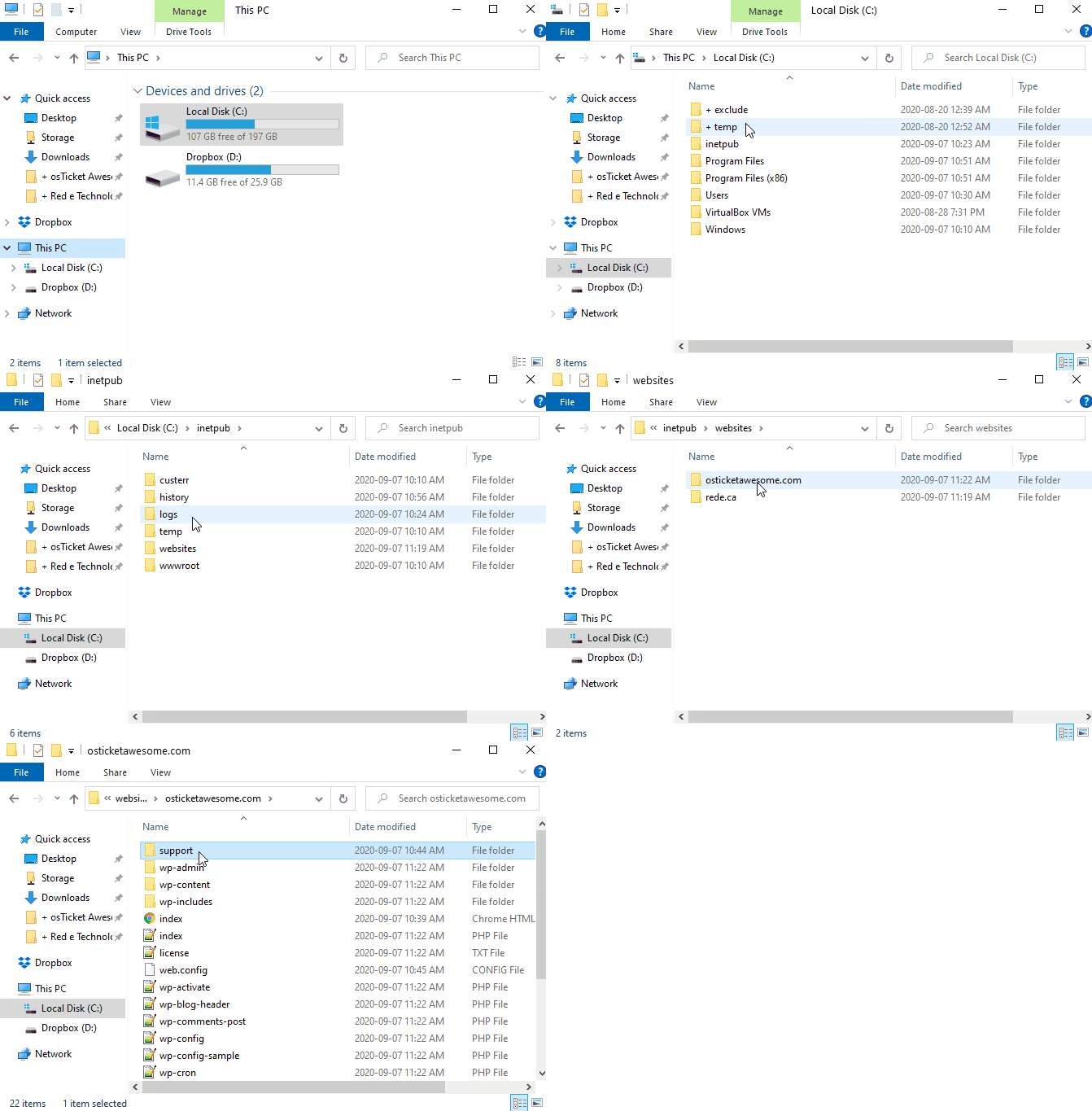
Navigate into your support directory. Rename it support-old.
-
Windows Explorer
Open Windows Explorer and navigate to your web root directory
Rename the support directory to support-old
-
Windows PowerShell
PowerShell
PS C:> cd C:inetpubwwwroot
PS C:inetpubwwwroot> Rename-Item support support-old
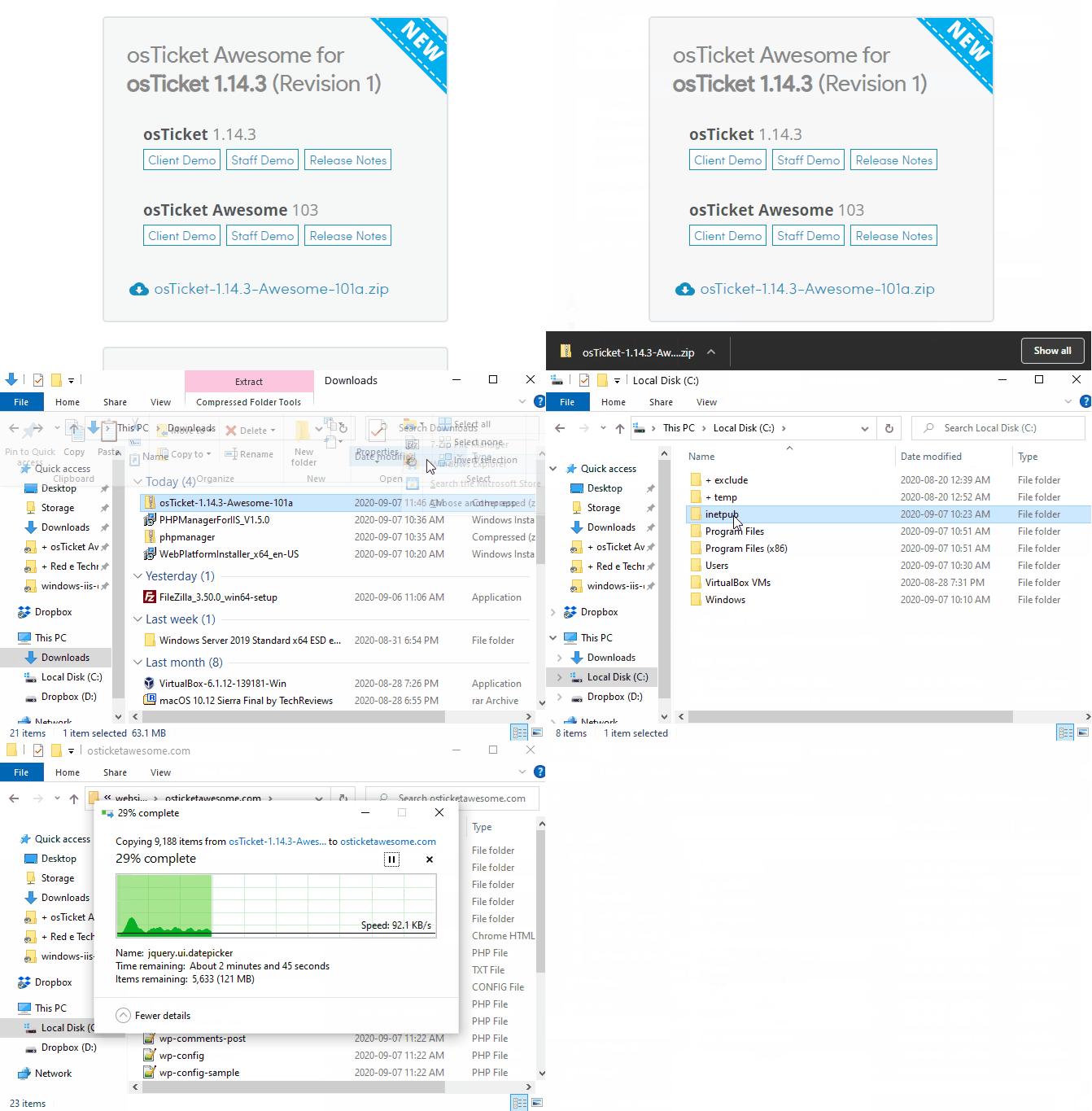
Download and extract the latest osTicket Awesome .zip. Put the upload folder in your web root directory. Rename it to support.
-
Windows Explorer
Download the osTicket Awesome installation .zip to your computer
Extract the .zip file
Open the upload folder
Rename the upload folder to support
Move the support folder to your web root directory
Delete README.txt and the osTicket Awesome .zip
-
Windows PowerShell
PowerShell
PS C:UsersYourNameDownloads> Expand-Archive osTicket-*-Awesome-*.zip
PS C:UsersYourNameDownloads> Rename-Item osTicket-*-Awesome-*upload support
PS C:UsersYourNameDownloads> Move-Item .*support C:inetpubwwwroot
PS C:UsersYourNameDownloads> Remove-Item osTicket-*-Awesome-*, README.txt -Recurse
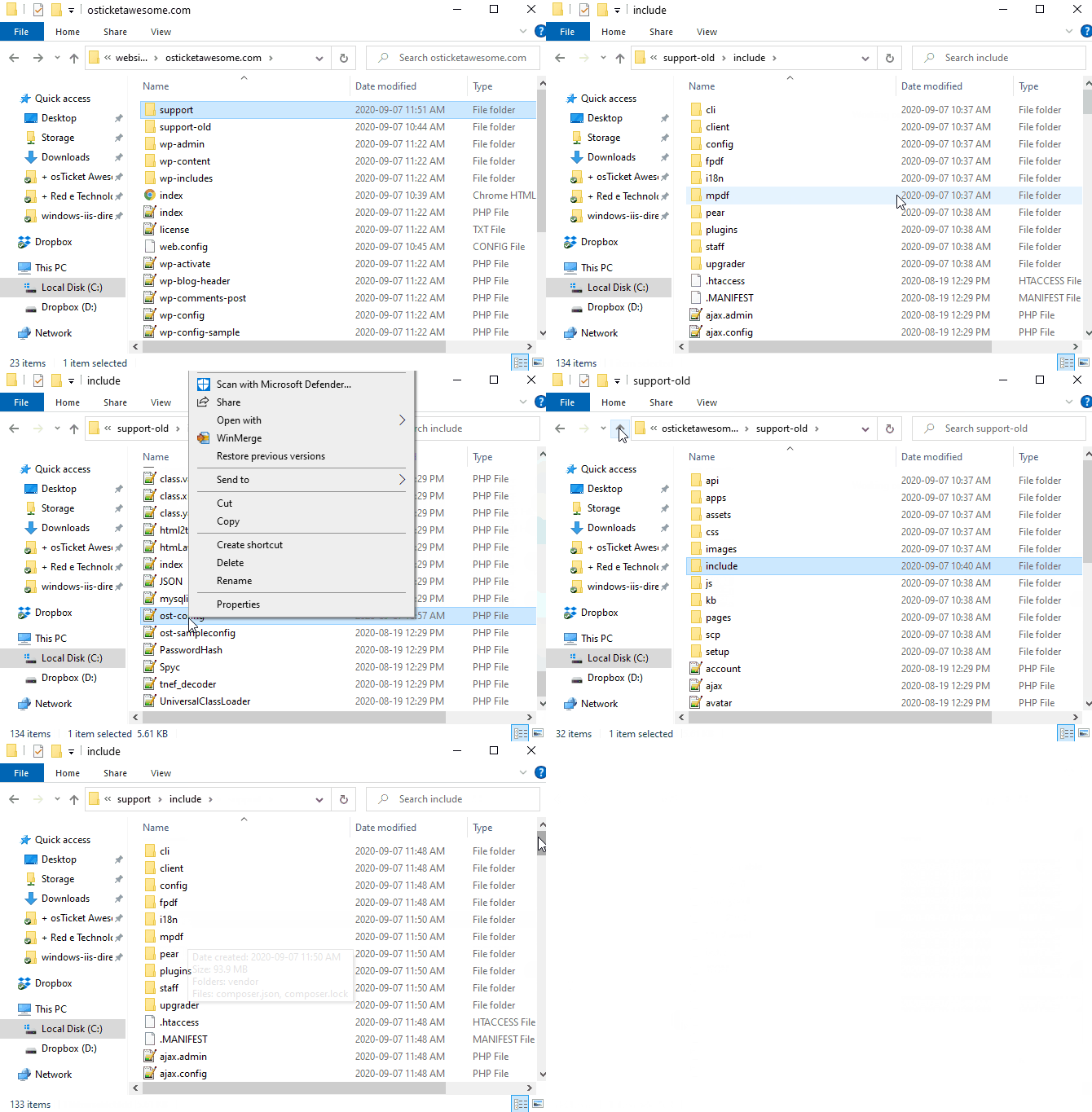
Copy ost-config.php from includesupport-old to include
-
Windows Explorer
Copy ost-config.php from support-oldinclude to supportinclude
-
Windows PowerShell
PowerShell
PS C:> Copy-Item C:inetpubwwwrootsupport-oldincludeost-config.php C:inetpubwwwrootsupportinclude
Go to www.your-domain.com/support/scp and log in
If required, complete the database upgrade process
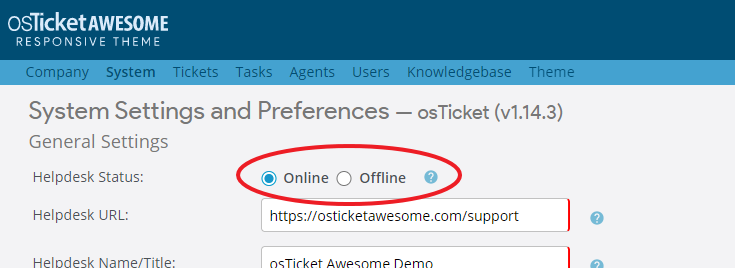
Switch osTicket Awesome to Online (Admin Panel > Settings)
Now take a look at our post-installation tasks
hello after i follow my steps , get error when i open theme tab from scp admin
HTTP Error 404.0 – Not Found
The resource you are looking for has been removed, had its name changed, or is temporarily unavailable.
Most likely causes:
The directory or file specified does not exist on the Web server.
The URL contains a typographical error.
A custom filter or module, such as URLScan, restricts access to the file.
Things you can try:
Create the content on the Web server.
Review the browser URL.
Create a tracing rule to track failed requests for this HTTP status code and see which module is calling SetStatus. For more information about creating a tracing rule for failed requests, click here.
Detailed Error Information:
Module IIS Web Core
Notification MapRequestHandler
Handler php-7.4.23
Error Code 0x80070002
Requested URL http://localhost:80/test/scp/theme.php
Physical Path C:\inetpub\wwwroot\test\scp\theme.php
Logon Method Anonymous
Logon User Anonymous