
Logo Tips
Get your company logo looking sharp in osTicket Awesome’s header. Here’s what works and what doesn’t.
Where to set your logo: Admin Panel → Settings → Company → Upload Logo. osTicket Awesome displays your logo in the top-left corner of the helpdesk header, scaled to fit the navigation bar height.
This is what happens when you upload a logo with a lot of whitespace around it. The header scales the entire image to fit, so all that empty space shrinks the actual logo down to nearly nothing.


Crop the image tightly around the logo before uploading. Now the header scales the actual logo, not the whitespace. Much better.


Use a PNG with a transparent background. If your logo has a solid white or coloured background, it will show as an ugly rectangle in the header.


Quick fix: If your logo has a solid-colour background, most image editors can remove it. In Photoshop, use the Magic Wand tool on the background. Free tools like remove.bg do this automatically.
If parts of your logo are the same colour as the header background, those parts will disappear. A multicoloured logo usually works fine, but a single-colour logo may need a colour overlay or slight outline to stay visible.


The header bar is wide and short. A tall or stacked logo gets scaled down to fit the bar height, making it appear tiny and unreadable.
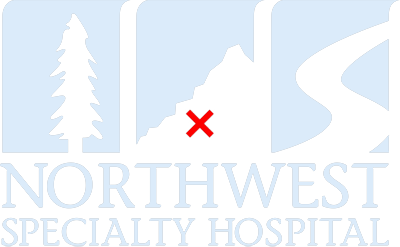

Use the horizontal lockup version of your logo (icon + text side-by-side). A wide, short image fills the header space properly and stays readable.

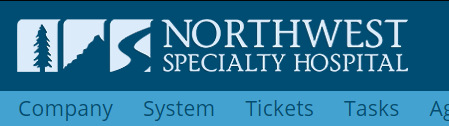
Checklist: Cropped tightly, transparent PNG, colours contrast with the header, and wider than it is tall. Get all four right and your logo will look sharp.